


The quickest-looking fix for a disabled iPad can erase everything stored on it. If you’re searching for an ipad disabled connect to itunes fix melbourne, pause before choosing Restore: the message usually appears after too many incorrect passcode attempts, and Apple’s recovery process can erase the iPad. Any data you want back must come from a backup made before the device was disabled.
It’s understandable to feel unsure when the screen says “Connect to iTunes,” especially when iTunes may not be the right tool for your computer. This guide explains how to choose a recovery option without rushing into data loss. You’ll learn what Recovery Mode does, when to use Finder, Apple Devices or iTunes, and how a previous backup affects what you can restore.
We’ll also cover what to try if recovery doesn’t work and when an assessment may help identify a hardware issue. If self-service steps fail, SIMSIM Repairs’ Melbourne CBD store at 80 Flinders St can be a local option for an iPad repair assessment. Recovery and repair aren’t the same as passcode removal or guaranteed data recovery, so understand the limits before taking the next step.
Key Takeaways
- A disabled message can result from a passcode lockout. It doesn’t, by itself, prove there’s a hardware fault.
- For an ipad disabled connect to itunes fix melbourne, identify your iPad model and computer first so you can follow the relevant recovery path.
- Compare Update, Restore and backup recovery before choosing a step, and consider the possible impact on your data.
- Use a preparation checklist to check your backup and connection before starting recovery. Persistent connection or charging problems may need assessment.
- If self-service doesn’t resolve the issue, find SIMSIM at 80 Flinders St, Melbourne VIC 3000, or book online. See SIMSIM on YouTube.
IPad Disabled, Connect to iTunes: What to Do First
Seeing a disabled message can feel alarming, especially when your iPad holds important photos, notes or work. In most cases, “iPad Unavailable” or a prompt to connect to a computer signals a passcode-related security lockout after unsuccessful passcode attempts. The exact wording can vary with the iPad’s software and state. The message alone doesn’t prove the iPad has a hardware fault or that its data has already been deleted.
Pause before trying another passcode. If you’re looking for an ipad disabled connect to itunes fix melbourne, first distinguish a passcode lockout from other problems. A frozen screen may not respond to touch, an update issue may leave the iPad showing a progress or recovery screen, and hardware trouble may come with charging or display symptoms. The screen alone can’t confirm the cause.
Why does an iPad say “disabled” or “unavailable”?
Passcode protection is designed to restrict access after repeated incorrect attempts. “Connect to iTunes” is older wording that people still search for; depending on your computer and software, you may now use Finder or Apple Devices instead. Some software or update problems can also lead an iPad into Recovery Mode. For background on past update-related cases, see iOS recovery mode issues. That history doesn’t mean an update caused your particular lockout.
Before trying a fix, protect your data and options
Check whether an iCloud or computer backup exists before choosing an erase option. Look from another device signed in to your Apple Account, or check the computer you previously used for backups. A restore doesn’t reveal or bypass the passcode: it erases the iPad. You can recover backed-up content only from a backup made beforehand, and anything stored only on the iPad may be lost.
Don’t keep guessing, and avoid unverified unlocking software that claims to remove the passcode without consequences. If you’re unsure whether a backup exists, pause before erasing and confirm what you can. For more repair-related videos, visit SIMSIM’s YouTube channel.
How to Fix a Disabled iPad: Recovery Mode, Finder, and Apple Devices
Recovery Mode lets your computer communicate with an iPad that can’t be opened normally. It isn’t a passcode bypass. The computer may offer Update or Restore, and those choices have different data consequences. Before you start, check for a backup and be prepared for the possibility that restoring will erase the iPad.
Choose the right computer app
On a Mac running macOS Catalina or later, use Finder. On Windows, use the Apple Devices app if it’s available for your setup, or iTunes where Apple supports it. Macs running macOS Mojave or earlier use iTunes. Use a trusted computer, a suitable data cable and the latest compatible version of the relevant app. Apple’s official Apple Support guide provides recovery instructions and model-specific button guidance.
Enter Recovery Mode and choose carefully
Button combinations differ by iPad model. Identify whether your iPad has a Home button, then follow this general path:
- Connect the iPad to your Mac or PC with the cable and open Finder, Apple Devices or iTunes, as appropriate.
- For an iPad without a Home button: quickly press and release Volume Up, then Volume Down. Press and hold the Top button until the Recovery Mode screen appears.
- For an iPad with a Home button: press and hold the Home button and the Top or Side button together until the Recovery Mode screen appears.
- When the computer detects the iPad and offers options, read the prompts before selecting Update or Restore.
If the screen sequence doesn’t match your model, stop and use Apple’s model-specific guidance rather than trying button combinations at random.
Update attempts to reinstall or update the iPad’s software without you deliberately choosing to erase it. It may not resolve a passcode lockout, so don’t assume it will make the iPad accessible. Restore erases the device before you set it up again. You can then recover available content from a backup. Restore won’t reveal or remove the passcode while preserving the iPad’s local data.
If the computer doesn’t recognise the iPad, check the cable, connection and app, then pause rather than repeatedly attempting recovery. Persistent connection or charging symptoms may be worth having assessed. For an ipad disabled connect to itunes fix melbourne, you can ask SIMSIM about an iPad assessment. An assessment doesn’t guarantee passcode removal or data recovery. You can also find general repair information on SIMSIM’s YouTube channel.
Update, Restore, or Get Help? Compare Your Disabled iPad Options
These options aren’t interchangeable. Update may address a software issue, Restore erases the iPad, and a backup can bring back data only after you’ve set up the device again. A professional assessment may help investigate connection or hardware symptoms, but it can’t promise to bypass a passcode or recover data from a locked iPad.
| Option | Purpose | Likely data impact | When to consider it |
|---|---|---|---|
| Update | Attempts to reinstall or update iPad software through Recovery Mode. | Not intended to erase data, but it may not resolve a passcode lockout. | When the computer offers Update and you want to try a software repair before choosing Restore. |
| Restore | Erases the iPad so you can set it up again. | Removes local content. Data can be returned only if it’s available in a prior backup. | When you accept erasure and are ready to restore from a backup, if one exists. |
| Restore from backup | Returns backed-up content during setup after erasing the device. | Restores only what was included in the backup. Content saved only on the iPad may not return. | After erasing, if you can access a suitable iCloud or computer backup. |
| Professional assessment | Checks for possible connection or hardware issues. | Assessment alone doesn’t bypass the passcode or guarantee data recovery. | If recovery fails repeatedly, the computer won’t recognise the iPad, or charging symptoms suggest a hardware concern. |
Can you unlock a disabled iPad without erasing it?
A forgotten passcode can’t simply be displayed through ordinary recovery, and Recovery Mode isn’t a way to bypass it while keeping unbacked-up data. Update and Restore are different choices: Update attempts a software fix without deliberately selecting erase, while Restore erases the iPad. Apple outlines the process in its official Apple Support guide. Don’t choose Restore unless you understand the data risk.
What if recovery mode fails?
Before repeating the process, check the cable and computer connection, and make sure you’re using current compatible software. If the iPad still won’t connect, or it behaves unusually, overheats or shows physical damage, stop and seek guidance. A connection failure alone doesn’t establish a hardware fault, but persistent issues or charging symptoms may warrant assessment. SIMSIM lists Apple device repair information, including iPad-related service details. An assessment can help identify a repair need, but it isn’t a passcode-removal or data-recovery guarantee.
For an ipad disabled connect to itunes fix melbourne, weigh the data risk before choosing Restore. If you’d like to discuss an assessment, you can contact SIMSIM through its booking page. You can also visit SIMSIM’s YouTube channel for repair information.
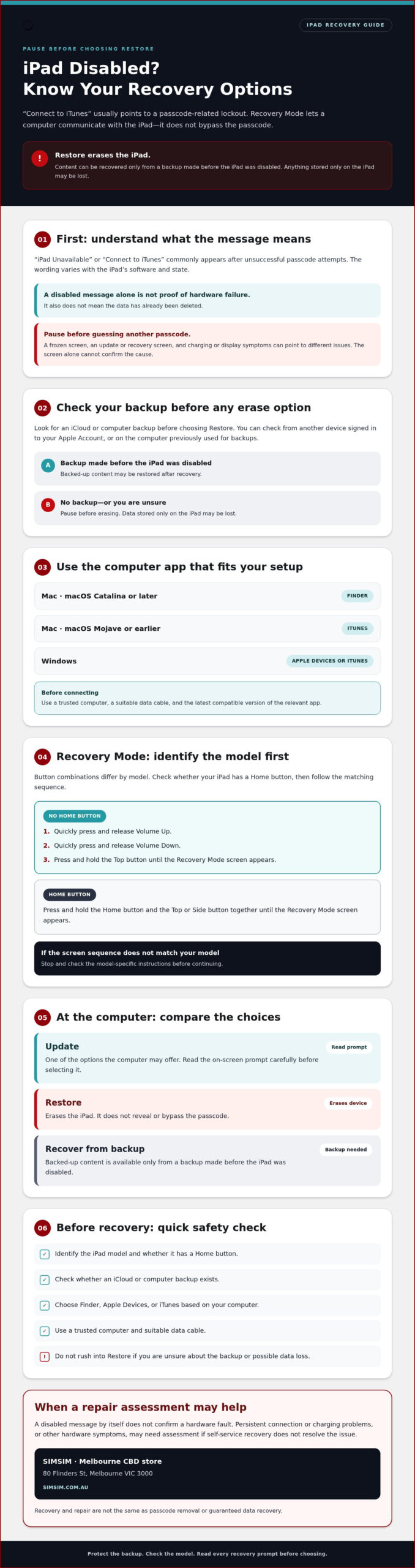
Step-by-Step: Prepare to Recover a Disabled iPad Safely
A little preparation can prevent a rushed choice from becoming a data-loss surprise. Before connecting your iPad, identify the model, check which computer you’ll use and find out whether a backup may be available. Keep your passcode private, and don’t choose Restore until you understand that it erases the iPad.
Pre-recovery checklist
- Identify your iPad. Note the model if you know it, and write down the exact screen message. Don’t include your passcode in notes or share it with anyone.
- Check for a backup. Using a trusted device or computer, check whether an iCloud or computer backup may exist and when it was made. A backup can help you recover saved content after a restore, but it won’t include information that was never backed up.
- Match the recovery app to your computer. Macs running macOS Catalina or later use Finder; Macs running macOS Mojave or earlier use iTunes. On Windows, use Apple Devices where supported, or iTunes if that’s appropriate for your setup.
- Prepare the connection. Use a suitable data cable and a trusted computer. Check that the recovery app is current and compatible before beginning, and make sure the cable connects securely.
- Know the data risk. An Update attempt isn’t the same as a Restore, but it may not resolve a passcode lockout. Restore erases the iPad. If you’re unsure about your backup, pause before selecting it.
If the iPad remains disabled
Don’t keep repeating erase or restore attempts while you’re uncertain about the backup. Instead, note any computer error messages and what happens during connection: whether the iPad appears in Finder, Apple Devices or iTunes, whether the connection drops, and whether charging is unreliable. These observations can help a technician understand the issue, but they don’t confirm a particular fault on their own.
If the iPad shows physical damage, becomes unusually hot or behaves unexpectedly, stop troubleshooting and seek guidance rather than continuing to connect or charge it. A local assessment may help investigate connection or hardware symptoms, but it can’t guarantee passcode removal or data recovery.
If you’re looking for an ipad disabled connect to itunes fix melbourne and would prefer an in-person assessment, SIMSIM’s Melbourne CBD store is at 80 Flinders St, Melbourne VIC 3000. Book an iPad assessment with SIMSIM, and see SIMSIM’s YouTube channel for repair information.
Need an iPad Disabled Fix in Melbourne? Know When to Visit SIMSIM
Self-service recovery is useful when the computer recognises the iPad and you’re comfortable following Apple’s instructions. If the connection keeps failing after you’ve checked the cable, computer port and relevant software, repeating the same steps may not help. A local assessment can offer another way to investigate what’s happening without assuming the cause from the screen message alone.
When is a Melbourne repair assessment worth considering?
Consider seeking help if Finder, Apple Devices or iTunes still won’t recognise the iPad after basic connection checks, or if the iPad repeatedly disconnects. Charging symptoms may also be relevant. For example, a cable that won’t stay connected or an iPad that doesn’t appear to charge could point to a hardware concern, but neither symptom confirms that the charging port is the cause.
SIMSIM lists iPad charging port repair among its services. An assessment may help identify whether a repair issue is present, but it can’t promise to remove a passcode or recover data that wasn’t backed up. If preserving local data is your main concern, explain that before authorising any erase or restore. A repair assessment and a software restore are different paths.
Book an iPad assessment at SIMSIM’s Melbourne CBD store
Before arranging help, note the exact message on the iPad, the computer and app you tried, and any error or connection symptoms. Don’t share your passcode. This information can help explain what you’ve already attempted, but it doesn’t guarantee a particular diagnosis or outcome.
For an ipad disabled connect to itunes fix melbourne, SIMSIM’s store is at 80 Flinders St, Melbourne VIC 3000. You can review repair information on SIMSIM’s YouTube channel, then book an appointment if you’d like to discuss an assessment. No assessment can promise passcode removal or recovery of unbacked-up data.
Choose Your Next Step With Confidence
A disabled iPad calls for a careful choice, not more passcode guesses. Check for an existing backup before recovery, and remember that Restore erases the iPad while Update may not resolve a passcode lockout. Finder, Apple Devices or iTunes can help with recovery, depending on your computer, but none reveals or bypasses the passcode.
If connection problems continue or charging seems unreliable, an assessment may help identify whether a hardware issue needs attention. SIMSIM provides iPad repair, including iPad charging port repair, from its Melbourne CBD store at 80 Flinders St, Melbourne VIC 3000. An assessment can’t guarantee passcode removal or recovery of data that wasn’t backed up.
If you need an ipad disabled connect to itunes fix melbourne, take the next step with clear expectations. Book an iPad assessment with SIMSIM, or visit SIMSIM’s YouTube channel for repair information. You have options, and you can move forward one informed step at a time.
Frequently Asked Questions
Why does my iPad say “disabled, connect to iTunes”?
This message usually means the iPad has entered a security lockout after repeated incorrect passcode attempts. The wording can differ by software version, and newer computers may use Finder or Apple Devices rather than iTunes. The message alone doesn’t prove a hardware fault or confirm that your data has been deleted. Stop guessing passcodes, then check whether you have an iCloud or computer backup before considering recovery.
Can I fix a disabled iPad without losing my data?
There’s no ordinary recovery method that reveals or bypasses a forgotten passcode while preserving all data stored only on the iPad. An Update may attempt to reinstall software without deliberately erasing the device, but it may not resolve a passcode lockout. Restore erases the iPad. You can recover backed-up content during setup, but anything not included in a backup may not be recoverable.
How do I connect a disabled iPad to Finder or Apple Devices?
Connect the iPad to a trusted computer with a suitable data cable, then open the app for that computer: Finder on Macs running macOS Catalina or later, or Apple Devices on supported Windows setups. iTunes may apply on Windows or older Macs, depending on the software. Follow Apple’s model-specific steps to enter Recovery Mode. The computer may then offer Update or Restore, so read the data-loss warnings before choosing.
What happens if I restore a disabled iPad?
Restore erases the iPad and returns it to a setup state. It doesn’t reveal or bypass the forgotten passcode, and content stored only on the device may be lost. After setup, you can restore available content from an iCloud or computer backup made before the erase. Check for a backup first, and don’t proceed if you’re unsure whether important files are stored elsewhere.
Can I use iTunes to unlock a disabled iPad in 2026?
iTunes may still be the appropriate computer app in some cases, such as on older Macs or Windows setups where it’s supported. On newer Macs, use Finder; on supported Windows computers, Apple Devices may be the right choice. No app unlocks a disabled iPad while preserving unbacked-up data. Recovery can lead to an Update attempt or an erase-and-restore, depending on the options offered.
What should I do if my computer does not recognise my iPad?
Check the cable, computer connection and compatible Apple software before trying the recovery steps again. If possible, try a different suitable cable or computer; for broader computer system and connectivity troubleshooting support, IT resources like reisinformatica.com can provide helpful technical guidance. Note any error messages and whether the iPad disconnects or has charging symptoms. These signs don’t identify the cause on their own. If connection problems persist, or the iPad is damaged or behaving unusually, stop and seek an assessment rather than repeating restore attempts.
Where can I get help with a disabled iPad in Melbourne CBD?
SIMSIM has a store at 80 Flinders St, Melbourne VIC 3000, and its listed services include iPad repair and iPad charging port repair. You can book an iPad assessment with SIMSIM if self-service recovery fails or charging symptoms need attention. An assessment can’t guarantee passcode removal or recovery of unbacked-up data. For repair information, visit SIMSIM’s YouTube channel.