

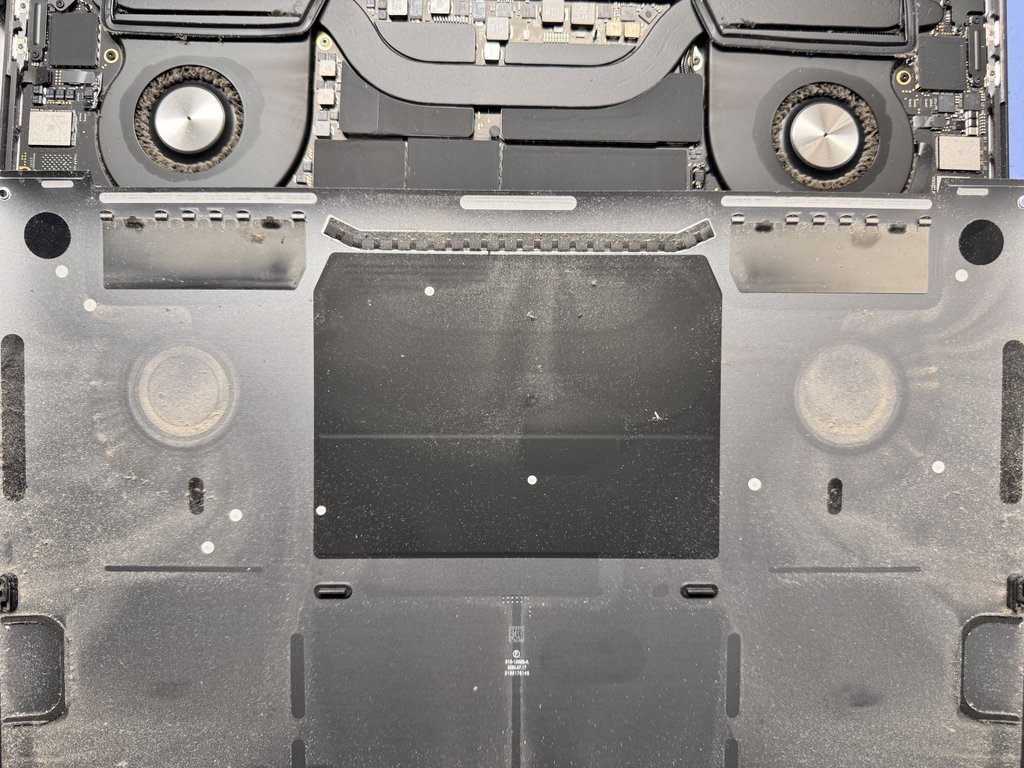
To learn how to fix a MacBook that won’t turn on, check the power source, charger, cable and charging port first. If the battery is flat, leave the MacBook charging for up to 10 minutes before trying to start it again. Apple silicon Macs don’t use a separate SMC key combination; after shutting down, wait at least 30 seconds before restarting.
A black screen can make a dependable MacBook feel suddenly out of reach, but the cause may be as simple as a drained battery or connected accessory. Start with the basics, then work through software checks before assuming there’s a hardware fault.
This guide walks you through checking power and charging, understanding SMC resets on Apple silicon, trying Safe Mode and recognising signs of a possible hardware problem. It also explains why disconnecting the battery isn’t a sensible first troubleshooting step, so you can choose what to try next with more confidence.
Key Takeaways
- Rule out a simple power issue by checking the outlet, charger, cable and charging port before moving on to deeper troubleshooting.
- Use the reset method that matches your MacBook: Apple silicon and Intel models handle SMC resets differently.
- Try Safe Mode to help identify whether startup trouble may be related to software.
- Notice whether the display, startup sounds or power-button response offer clues to a possible hardware fault.
- Avoid disconnecting the battery as a first test; some MacBook Pro models may not start without a working battery, even when connected to a charger.
Checking the wall socket, charger, cable and charging port
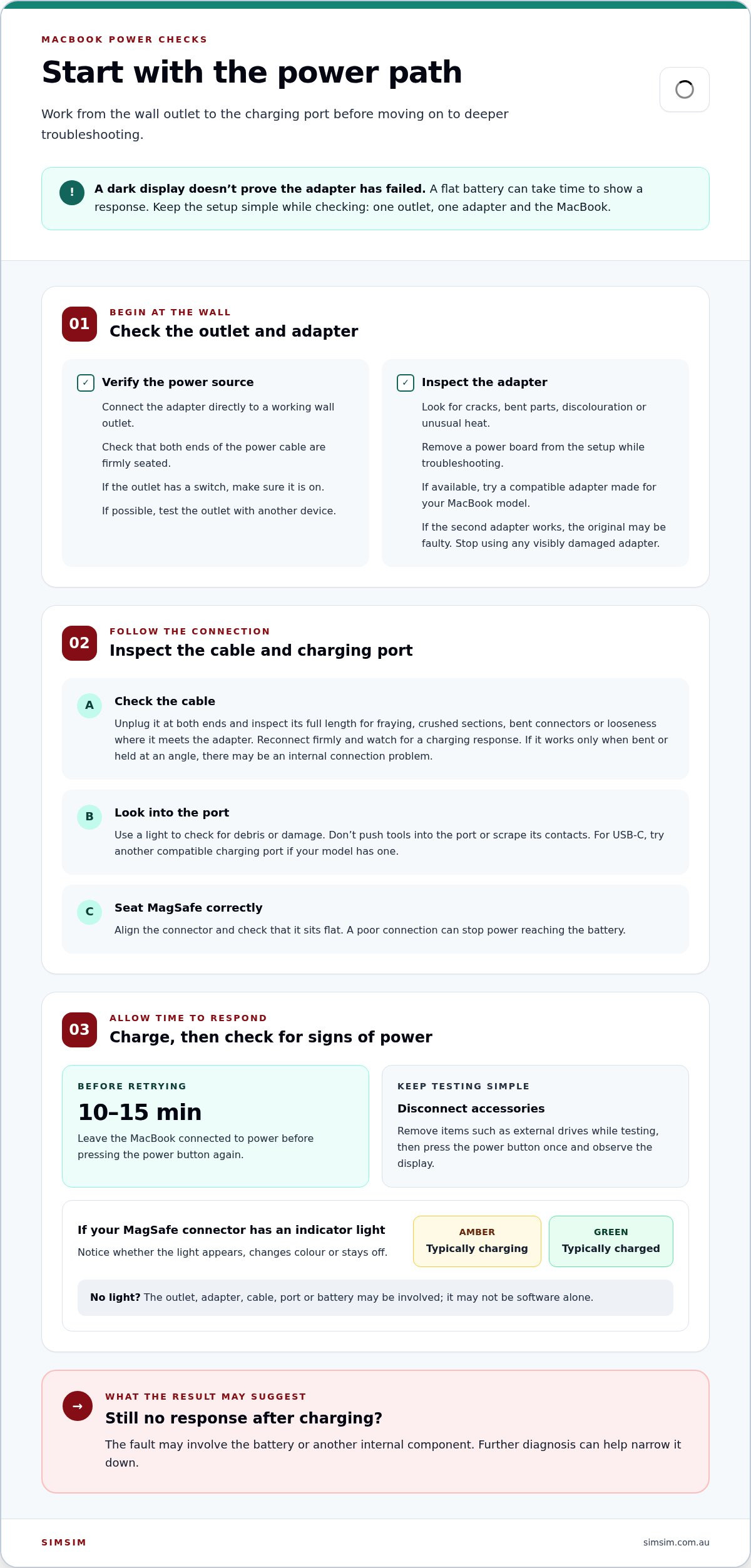
Start with the power path, moving from the wall outlet to the MacBook’s charging port. A fully drained battery may need up to 10 minutes connected before the display or startup response appears.
Check the Wall Outlet and Power Adapter
Connect the adapter directly to a working wall outlet, then check that both ends of its power cable are firmly seated. If the outlet has a switch, make sure it’s on; test the outlet with another device if possible. A power board or loose plug can interrupt charging, so remove it from the setup while troubleshooting.Inspect the adapter for cracks, bent parts, discolouration or unusual heat. If you have access to a compatible MacBook adapter, try it with your MacBook. If the second adapter works, the original may be faulty. Use the correct type for your model, and stop using any adapter with visible damage.
Inspect the Charging Cable and Port
Unplug the charging cable at both ends and inspect it along its length. Look for fraying, crushed sections, bent connectors or looseness where the cable meets the adapter. Reconnect it firmly, then watch for a charging response. A cable that works only when bent or held at an angle may have an internal connection problem.Check the MacBook port with a light, looking for debris or damage. Don’t push tools into the port or scrape its contacts. For USB-C, try another compatible charging port if your model has one. For MagSafe, align the connector and check that it sits flat; a poor connection can stop power reaching the battery.
Connect the Charger and Check MagSafe
Leave the MacBook connected to power for 10 to 15 minutes before trying the power button again. A flat battery can take time to show a response, so an initially dark display doesn’t prove the adapter has failed. Disconnect accessories such as external drives while testing, keeping the setup simple: one outlet, one adapter and the MacBook.If your MagSafe connector has an indicator light, look for a change after connecting it. Amber typically indicates charging, while green typically means the battery is charged. No light can point to an issue with the outlet, adapter, cable, port or battery, rather than software alone. Note whether the light appears, changes colour or stays off.
After these checks, press the power button once and observe the display. If the MacBook still shows no response after charging, the fault may involve the battery or another internal component. Further diagnosis can help narrow it down.
Does resetting the SMC work on Apple Silicon Macs?
Apple silicon MacBooks don’t use a separate SMC key combination. Identify your processor first, because reset steps for Intel models differ. Follow the matching steps below, and don’t try an Intel keyboard shortcut on an Apple silicon Mac.
- Check whether your MacBook has Apple silicon. If the MacBook starts, open the Apple menu and choose “About This Mac” to see whether it lists an Apple chip or an Intel processor. If it won’t start, use the model information on its case or packaging. This distinction matters: Apple silicon handles power management differently, so traditional Intel SMC reset combinations don’t apply.
- Restart an Apple silicon Mac without an SMC key sequence. If you can shut it down from the Apple menu, do so, then wait at least 30 seconds before pressing the power button to start it again. That pause allows the Mac to complete its shutdown before the next start attempt. An Apple silicon Mac doesn’t need you to press and hold Shift, Control or Option to reset its SMC.
- Reset the SMC on an Intel MacBook with a non-removable battery. Shut down the Mac, then press and hold Shift, Control, Option and the power button together for 10 seconds. Release all four keys, then press the power button once to try a restart. Keep the keys held together for the full interval; releasing one early interrupts the combination.
- Use the separate T2 procedure for a T2-equipped Intel MacBook. Hold the power button for 10 seconds, then release it and press it again. For an Intel Mac with a T2 chip, the reset procedure also includes holding the specified three keys for 7 seconds. Don’t mix this timing with the non-removable-battery shortcut: check the chip type before choosing a sequence.
- Try an NVRAM reset only on an Intel Mac. Shut down, then press and hold Option, Command, P and R as the Mac starts. Keep holding the keys for about 20 seconds, then release them and let the Mac continue starting. PRAM is the older name often used for this reset. It’s separate from an SMC reset, so use it as a distinct troubleshooting step rather than combining both key sequences.
If your Intel MacBook still won’t start after the correct reset, or the screen remains blank, arrange a MacBook repair assessment to investigate a possible hardware fault.
Starting in Safe Mode
On an Apple silicon MacBook, press and hold the power button until startup options appear. Select a volume, hold Shift, then choose “Continue in Safe Mode”; for Recovery, select Options instead. Safe Mode limits what loads during startup, helping you distinguish some software problems from power or hardware faults.
- Start Safe Mode on Apple silicon. Shut down the machine, then press and hold the power button until the startup options window appears. Select your startup disk, press and hold Shift, then choose “Continue in Safe Mode”. Release Shift when the login screen appears. If the MacBook reaches the desktop, check whether the issue changes when fewer items load during startup.
- Use the Intel Safe Mode sequence when appropriate. Shut down the MacBook, press the power button, then immediately press and hold Shift. Release Shift when the login window appears. Safe Mode may take longer to load than a regular startup, so wait for the screen before deciding the attempt failed. If the MacBook starts in Safe Mode but not normally, recently added software or startup items may be involved.
- Open Recovery if startup still fails. On Apple silicon, press and hold the power button until startup options appear, then select “Options” and continue. On an Intel Mac, start the device while holding Command and R until the Apple logo or a Recovery screen appears. Recovery provides tools for checking the startup disk without loading the usual desktop environment.
- Run Disk Utility from Recovery. Choose Disk Utility, select the startup disk or its volume, then run First Aid. Review any message shown when the check finishes. Disk Utility can identify and attempt to repair certain file-system problems; it won’t fix a faulty battery, damaged display or failed internal component. Avoid erasing the disk unless you intend to remove its contents.
- Reserve DFU firmware restoration for a T2-related startup fault. A T2 firmware restoration uses another Mac and a suitable connection, so it isn’t the same as starting in Safe Mode or running Disk Utility. The firmware restoration process may take up to 5 minutes, and the DFU indicator usually takes about 10 seconds to appear when entering DFU mode. Don’t interrupt a restoration once it begins.
If Recovery opens but Safe Mode doesn’t, note the exact screen message and whether the MacBook reaches startup options. Those clues help separate software, storage and hardware symptoms. For a display fault that keeps you from seeing startup options, consider a MacBook repair assessment.
Possible power-button or top-case faults
- Check how the power button responds. Press it once and observe the screen, keyboard response and any startup sound. If the button feels stuck, doesn’t click as usual, or works only when pressed at an angle, note that behaviour. A damaged or unresponsive button can prevent a startup command, even if the computer has power.
- Try a controlled force restart. Hold the power button for about 10 seconds, then release it and wait 5 seconds. Press the button once to start the MacBook. This sequence can clear a stalled state, but it won’t repair a physically faulty button, a damaged top case or an internal power fault.
- Use startup options to check an Apple silicon Mac. If the screen stays blank, press and hold the power button for about 10 seconds to try to show the boot options window. If startup options appear, the button has registered the press and the computer has reached an early startup stage. Select Recovery or a startup disk to continue testing.
- Separate a screen issue from a power-button issue. After pressing the power button, listen for startup sounds or check whether the keyboard responds. A lit keyboard with a blank display suggests the machine may be running without showing an image. If startup options or the Apple logo appears briefly and then disappears, note when it happens; that detail helps distinguish display symptoms from a failed startup.
- Look for signs of top-case damage. Check whether the power button sits unevenly, feels loose or shows visible impact damage. Don’t force it or pour liquid around the key. If the button remains unresponsive after the restart sequence, stop pressing it repeatedly; a hardware fault may need examination rather than another software reset.
- Keep notes for a coverage discussion. Record the MacBook model, when the failure began, the button’s response and any recent impact or liquid exposure. AppleCare plan terms and consumer-guarantee assessments consider the device and circumstances, so keep purchase details and describe the symptoms accurately. Avoid opening the case, which can complicate diagnosis.
If the power button still won’t start the MacBook, SIMSIM Repairs in Melbourne CBD can assess it for a possible hardware fault.
Testing the MacBook with the battery disconnected
Disconnecting the battery isn’t a reliable first test for a MacBook that won’t start. Some models need a working battery even when plugged into a functional charger, so a failed start with the battery disconnected doesn’t prove the charger or logic board is faulty.
- Identify the MacBook model before considering this test. The model determines whether the computer can start without its battery. Some MacBook models may not start without a working battery, even when connected to a suitable charger. For those models, disconnecting the battery can create a misleading result.
- Don’t open the case just to disconnect the battery. Battery access involves opening the MacBook and handling internal connectors. If you don’t have the right repair experience and tools, leave this step to a technician. Pressing or pulling an internal connector incorrectly can create a new fault, making it harder to tell whether the original problem involved the battery, charging circuit or another component.
- Run external checks before any internal diagnosis. Unplug accessories, then connect a suitable charger directly to the MacBook. Leave it plugged in while watching for a charging indicator, fan movement, keyboard response or startup sound. These observations won’t identify the failed part, but they help distinguish a total lack of response from a MacBook that powers on with a blank display.
- Record what happens during each start attempt. Note whether the charging indicator appears, whether the power button responds and whether the display changes. If the MacBook starts only while connected to power, the battery may be a stronger suspect than a software issue. If it remains completely unresponsive, the battery alone may not explain the fault.
- Ask for a battery-disconnected test as part of diagnosis. A technician can assess the model, battery condition and power behaviour before deciding whether disconnecting it is useful. Sometimes the MacBook needs a functioning battery to start, so reconnecting or reinstalling a battery may be necessary after testing. Interpret the result alongside charger checks and the device’s symptoms, not as a standalone verdict.
If your MacBook battery may be preventing startup, arrange a MacBook battery assessment before attempting internal disassembly.
SIMSIM Repairs: iPhone Screen Replacement
SIMSIM Repairs in Melbourne CBD can help if troubleshooting points to a MacBook battery fault rather than a charging or software issue. MacBook Battery Replacement is relevant when the battery no longer holds charge or the device won’t start reliably after power checks. An iPhone screen replacement won’t resolve a MacBook startup problem, so match the repair to the device and fault.
Share what you’ve observed, such as whether the MacBook responds to its power button or shows a charging indicator. Those details help focus attention on the likely issue and the appropriate repair. If battery concerns remain, contact SIMSIM Repairs about a MacBook battery assessment; you can also find SIMSIM Repairs on YouTube.
Choose the right next step for your MacBook
SIMSIM Repairs offers MacBook Battery Replacement, alongside iPhone Screen Replacement and iPad Charging Port Repair. For a MacBook that remains unresponsive, share the symptoms and arrange a conversation about the appropriate repair. You can contact SIMSIM Repairs for help and discuss what to do next.
Frequently Asked Questions
Can a Completely Dead Battery Stop a Mac from Turning On When Plugged In?
Yes, a fully drained battery can leave a Mac unresponsive even while it’s plugged in. Connect the charger and allow up to 10 minutes before trying the power button again. If there’s still no response, try a compatible charger or another suitable outlet. A battery that won’t accept charge is one possible cause, but charging connections or internal hardware can also prevent startup.
How long should I charge a dead MacBook before it turns on?
Allow up to 10 minutes of charging before expecting a response from a completely flat MacBook. If it remains unresponsive, keep it connected for 10 to 15 minutes, then try starting it again. Watch for any change in the charging indicator or screen. If there’s no sign of power after these checks, repeating the same wait is unlikely to identify the underlying fault.
What is the fastest way to fix a Mac that won’t turn on?
For a first attempt at how to fix a MacBook that won’t turn on, disconnect external accessories, connect power directly, then try a force restart. This checks whether a peripheral or stalled startup is involved without opening the computer. If the Mac responds but shows an error, note its exact wording. If it stays completely unresponsive, further button presses won’t identify a battery or internal hardware fault.
When should I just replace my Mac instead of repairing it?
Why Is My MacBook Pro Not Turning On but the Charger Light Is On?
A lit MagSafe indicator shows a response at the power connection, but it doesn’t prove the MacBook has completed startup. The battery may not be supplying usable power, or the computer might be running while the display stays blank. Note whether the indicator changes and whether you hear startup sounds. These clues can help distinguish a charging issue from a screen or internal hardware problem.
Why won’t my MacBook turn on even when plugged in?
If you’re working out how to fix a MacBook that won’t turn on, remember that being plugged in doesn’t rule out a faulty adapter, cable, charging port or battery. The MacBook may also have a power-button, display or internal hardware fault. Keyboard activity with a dark screen suggests a different symptom from a device showing no response. Track what happens when you connect power and press the button to guide diagnosis.
How to check whether a MacBook that won’t turn on is actually charging
Check for a MagSafe indicator response after connecting the charger, and note whether its colour changes. If the MacBook starts far enough to show its battery menu, look for the charging status there. A dark screen alone can’t confirm whether power is reaching the battery. Record any indicator activity and changes after reconnecting the cable to help narrow down the power issue.
How to force restart a MacBook Air or MacBook Pro that won’t start
Hold the power button for about 10 seconds, release it, and wait 5 seconds. Then press the power button once to try starting the MacBook Air or MacBook Pro. This can clear a stalled state, but it won’t repair a faulty battery or damaged component. On an Apple silicon model, holding the button may bring up startup options instead, which indicates the computer has registered the press.