


A working screen doesn’t automatically make an old iPad ready for a child. Getting an old iPad fixed for kids is one part of the handover; reviewing what the device can share and what a child can access matters just as much.
It makes sense to want a familiar device to be useful without leaving settings and permissions on autopilot. Before handing it over, review which apps can access location and personal information, then set parental controls that suit your child and your family’s rules.
This guide covers the privacy checks and Screen Time controls to review, including limiting app access and keeping a child within one app when needed. A few careful steps can help make the iPad ready for its next little user.
Key Takeaways
- Weigh the iPad’s fault and everyday performance when deciding whether a repair could make it useful for your child again.
- Back up important data and review privacy settings before the device is handed over for repair.
- Understand the repair process, warranty terms and possible risks so you can make an informed choice.
- Set family screen-time boundaries and use Guided Access when you want to keep the iPad in one app; start it by triple-clicking the Home or side button while the app is open.
- If the iPad won’t charge reliably, an iPad charging port repair may help address the problem before it becomes a child’s everyday device.
3. Is it worth repairing an old iPad or should I replace it?
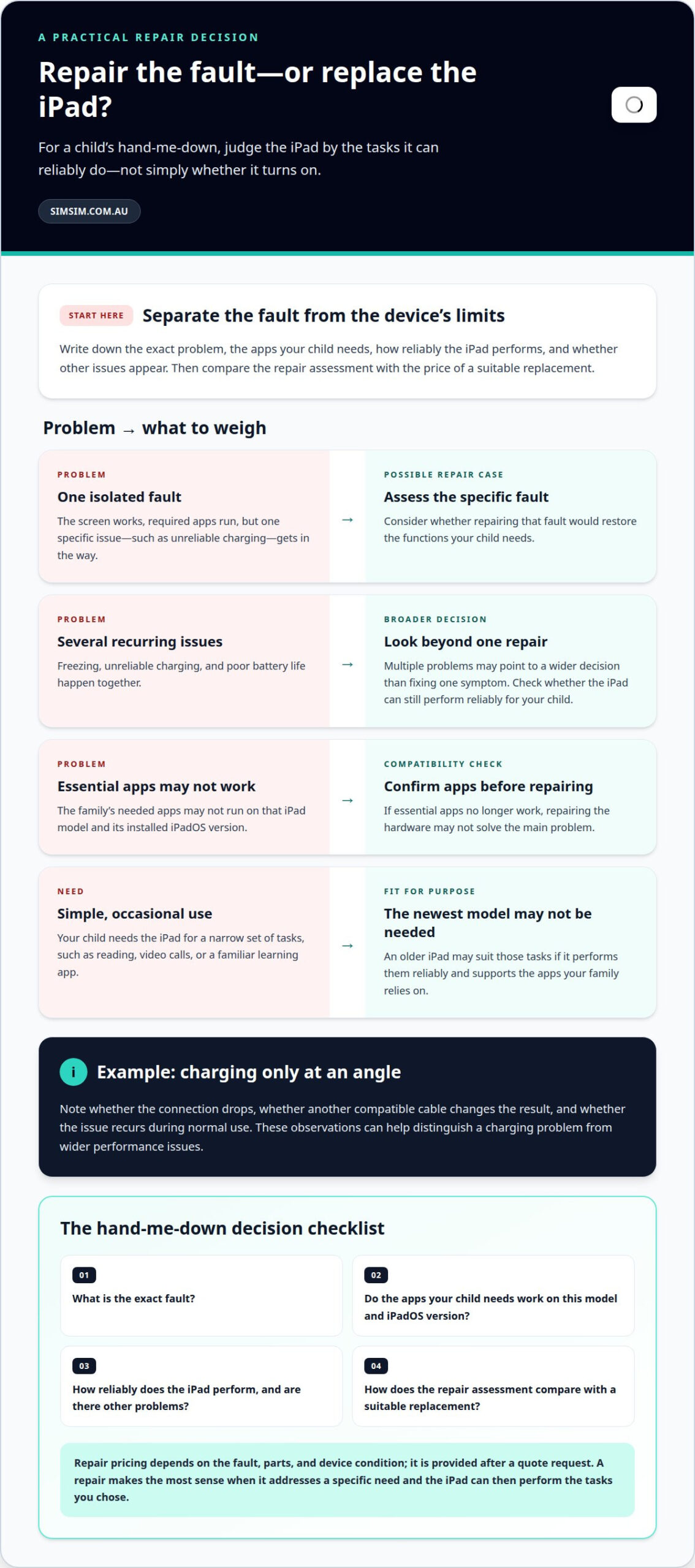
Start with the fault, then consider how your child will use the iPad. A device with one clear problem, such as an unreliable charging port, calls for a different decision from one that also freezes, loses charge quickly and struggles with everyday apps. Note what happens during normal use before weighing repair against replacement.
Next, check whether the iPad still suits the tasks you have in mind. A child who needs video calls, reading and a familiar learning app has different needs from one who wants to play newer games. Confirm that the apps your family relies on run on that model and its installed iPadOS version. For parents getting an old iPad fixed for kids, app compatibility matters as much as the hardware fault.
- One isolated fault: If the screen works and the device runs the required apps, focus on whether repairing the specific fault would restore the functions your child needs.
- Several recurring problems: Freezing, unreliable charging and poor battery life together may point to a broader decision than fixing one symptom.
- Limited app compatibility: If essential apps no longer work on the iPad, repairing its hardware may not solve the main problem.
- Simple, occasional use: A child using a device for a narrow set of tasks may not need the newest model, provided the old one performs those tasks reliably.
For example, an iPad that charges only when its cable is held at an angle has a specific, observable fault. Note whether the connection drops, whether another compatible cable changes the result, and whether the issue recurs during normal use. These details can help distinguish a charging problem from wider performance issues.
Consider replacement when the iPad’s limitations affect the whole experience. If it cannot run a necessary app, repeatedly stops responding during a child’s lesson, or loses charge before the activity ends, a single repair may leave the main problem unresolved. Separate a repairable fault from a device that no longer fits your family’s needs.
Before deciding, make a short checklist: the exact fault, the apps your child needs, how reliably the iPad performs, and whether other problems appear. Then compare the repair assessment with the price of a suitable replacement. Repair pricing depends on the fault, parts and device condition, and is provided after a quote request. Getting an old iPad fixed for kids makes most sense when the repair addresses a specific need.
For a hand-me-down, “worth repairing” means more than getting the iPad to turn on. It should perform the tasks you chose without the known fault interrupting them. If it meets those needs after repair, keeping the familiar device may make sense; if its software or several hardware problems get in the way, replacement may be more practical.
4. Where can I get an old iPad repaired in Australia?
In Australia, match the repair service to the iPad’s exact fault and model. A charging problem, cracked display and damaged buttons each need a different assessment. In Melbourne, a nearby repair location can also make dropping off and collecting your child’s device more straightforward.
Before arranging a repair, find the model name in Settings, then General, then About. Note the model number and describe the fault plainly. For example, record whether the iPad charges only when its cable is angled, or whether the display responds in some areas but not others. Clear details help focus the assessment on the problem you’re seeing.
Before a repair, consider the practical details that affect your family’s handover. Look for a clear explanation of the fault being assessed, the work proposed and how the device will be returned. For an iPad intended for a child, plan for privacy and access before leaving it for repair.
- Identify the device: Write down the iPad model and model number from Settings.
- Describe the fault: Note what happens, when it happens, and whether it repeats.
- Prepare the handover: Back up important files and consider what personal data is stored on the device.
- Understand the proposed work: Keep the repair description with your notes so it’s clear which fault the work addresses.
For example, “won’t charge” is less useful than “charging stops unless the cable is held at an angle.” A cracked screen description can note whether touch input fails near a particular edge. These observations give the technician a precise starting point without assuming one symptom explains every issue.
For families outside Melbourne, distance can shape the repair process. A local drop-off may suit a device needed soon, while a remote repair means planning how the iPad is sent and returned. Keep the model details, fault description and backup plan together, whichever option you use.
Once the fault is clear, you can arrange an assessment for the iPad’s charging issue or another repair need. Book an iPad repair assessment when you’re ready to take that next step. A prepared handover, specific fault notes and a clear repair scope help keep the decision focused on the device your child will use.
3. How to back up and protect data before iPad repair?
Before an iPad leaves home, make a fresh backup and confirm it has completed. A child’s photos, school files, saved drawings and app data can matter more than the device itself. Choose iCloud or a computer backup, then check that the latest copy is available before arranging the handover.
For iCloud, connect the iPad to Wi-Fi and open Settings. Tap your name, choose iCloud, then iCloud Backup and Back Up Now. Keep the iPad connected while the backup runs. Afterwards, return to the same screen and check the latest backup time. If the backup hasn’t finished, don’t treat it as a completed copy.
A computer offers another option. Connect the iPad to a Mac and use Finder, or connect it to a Windows computer using the Apple Devices app. Follow the on-screen backup steps, and choose an encrypted backup if you want saved passwords and Health data included. Keep the computer’s backup password somewhere secure; without it, an encrypted backup may be inaccessible.
After backing up, open a few important files on the iPad. Check a recent photo, a school document and any drawing your child wants to keep. If those files sync through iCloud, confirm they appear in iCloud on another device. A backup indicator alone doesn’t confirm that every file is present and usable.
- Record the iPad details: Note its model and the repair fault separately from account passwords.
- Protect account access: Keep the Apple Account password private, and don’t write it on a note attached to the device.
- Review the handover: Remove a case or accessory only if needed, and keep it separate from the iPad.
- Preserve the backup: Leave the saved copy in iCloud or on the computer until the repaired iPad’s files are checked.
Don’t erase the iPad just to prepare it for repair. First confirm the backup, then follow the repair service’s preparation instructions. If the iPad can’t turn on or connect to Wi-Fi, explain that when arranging the repair; you may not be able to make a recent backup from the device itself.
For example, a child’s iPad might contain a school worksheet stored only in a learning app. Check whether the app syncs its files or stores them locally, then save or export anything important if it allows it. Before the repair, note what was backed up and what remains on the device. That record helps you check the right things when the iPad comes home.
4. What risks come with third-party iPad repairs, and are repairs covered by a warranty
A third-party repair can address a specific iPad fault, but the work’s scope matters. A charging issue, for example, may be separate from an older battery problem. Make sure the written repair description identifies the fault being addressed. That gives you a clear reference when checking the device afterwards.
Parts and workmanship are practical considerations. If a replacement part doesn’t perform as expected, the iPad may still show the original symptom. A repair can also reveal a separate fault that wasn’t apparent before disassembly. A documented assessment and a clear record of the device’s condition are useful in either case.
Before authorising work, keep the repair paperwork and note existing issues, such as a cracked corner or an unresponsive area of the screen. After collection, test the relevant functions using familiar examples:
- Charging: Check whether the iPad connects and charges as expected.
- Touch response: Open an app and test the screen across its surface.
- Buttons and sound: Test the buttons and play a short audio clip.
- Original fault: Repeat the action that previously caused the problem.
Repair coverage depends on the written terms. The repair terms should describe which work or parts are covered, how long coverage applies, and any exclusions or claim steps. Read them before approving the repair, and keep a copy with the receipt. Don’t assume every fault on the iPad has the same coverage.
For example, a document covering a replaced charging component doesn’t necessarily cover a cracked display or unrelated battery issue. The wording matters. Look for the covered repair, any claim conditions, and whether accidental damage or later work affects coverage. These details help distinguish repair coverage from broader device cover.
Keep expectations precise. Repair coverage relates to the terms attached to the repair, while the original device paperwork may describe different cover. Don’t assume either document means every later problem will be fixed without charge. Check the wording for the exact fault and work involved.
For a child’s iPad, practical risks include the fault returning, another issue becoming noticeable, or personal data needing attention during service. A backup and privacy preparation can reduce the last concern. A clear repair scope, retained paperwork and a careful function test give you a concrete way to assess the result. Read the coverage terms as part of your decision rather than assuming a promise.
In the family’s example, the six-year-old stays with the step-family every second weekend. The article advises adults in step-families to discuss screen issues and agree on a solution before speaking with the child. In other words, the adults should first agree on what they will say. When older or angrier children are involved, it may be best for their biological parent to speak with them alone.
Time kids
A refurbished iPad needs a family screen-time plan before it becomes a child’s everyday device. Children around six are reported to spend between 4 and 7 hours each day on screens. That figure makes a clear household routine useful, especially when an old iPad moves from occasional use to regular access.
The guidance referenced for primary school-aged children describes a maximum of around an hour of screen use. Treat this as a planning point, not a timer that manages itself. Decide when the iPad is available, which activities it supports, and how it fits around sleep, schoolwork and play. A family might set aside one planned session for a shared game or reading app.
Age changes the approach. Children under 2 should use personal screens only for video chatting with family or loved ones. After age 2, limit screen time, focus on shared screen experiences and reserve personal use for special occasions. For a six-year-old, that could mean sitting together for a chosen video call, rather than leaving an iPad freely available throughout the afternoon.
Set a separate boundary for bedtime: put handheld screens away at least one hour before sleep. A practical routine could involve charging the iPad outside the bedroom and choosing a non-screen activity before bed. Keeping the device out of reach makes the boundary visible instead of relying on a child to remember the time.
Use Screen Time settings to support the plan. Set limits for the apps your child uses, schedule downtime and keep the Screen Time passcode with the adult managing the device. Explain the rule simply, for example, “The iPad is for our planned session, then it goes away.” A predictable routine is easier to understand than changing the limit each day.
A focused app session may help keep iPad use more contained. Open the chosen app, then triple-click the Home or side button to start Guided Access. This can keep a child in a reading activity instead of switching to other apps. End the session using the same button and the Guided Access passcode.
Before setting these controls, decide which apps suit your child and review their location and privacy permissions. Then agree on the screen schedule together, explaining why the limits exist. If an iPad fault disrupts the planned routine, book an iPad repair assessment before making it part of your child’s regular screen-time plan.
Put handheld screens away at least one hour before bedtime. Make this a fixed part of the evening routine rather than a last-minute negotiation. Agree on a clear stopping point, move the iPad to its charging place, then start a chosen non-screen activity. Keep the routine consistent on ordinary evenings and explain it in the same simple language each time. If plans change, adjust the earlier session rather than letting device use continue close to bedtime. A visible sequence, finish the activity, put the device away, begin the bedtime routine, can make the transition easier to follow.
SIMSIM Repairs: iPad Charging Port Repair
SIMSIM Repairs provides iPad Charging Port Repair for iPads that won’t charge reliably or connect only when the cable is positioned a certain way. If the device is for your child, describe the charging problem and when it occurs. This helps focus the repair assessment on the fault affecting everyday use.
Before arranging the repair, keep your backup and privacy preparations in place, and note any other symptoms. If charging is the main issue, you can book an iPad repair assessment and explore the SIMSIM YouTube channel.
Contact SIMSIM Repairs to discuss the iPad’s charging issue.
Make the iPad part of a thoughtful handover
Getting an old iPad fixed for kids can be the start of a more deliberate handover, not simply a return to everyday screen use. Once the device is ready, revisit its settings as your child’s apps and routines change. Keep family expectations clear, and make privacy part of the conversation so your child understands what information the iPad can access.
A simple habit helps: review the device together after adding an app or changing its purpose. Your child can learn to ask before sharing information, while you stay involved in the choices that shape their experience. The goal isn’t to make technology complicated, but to help an old device fit comfortably into your family’s life.
If your iPad’s charging issue needs attention, book an iPad repair assessment with SIMSIM Repairs in Melbourne CBD. A considered handover can make the device’s next chapter clear, useful and ready for your child.