

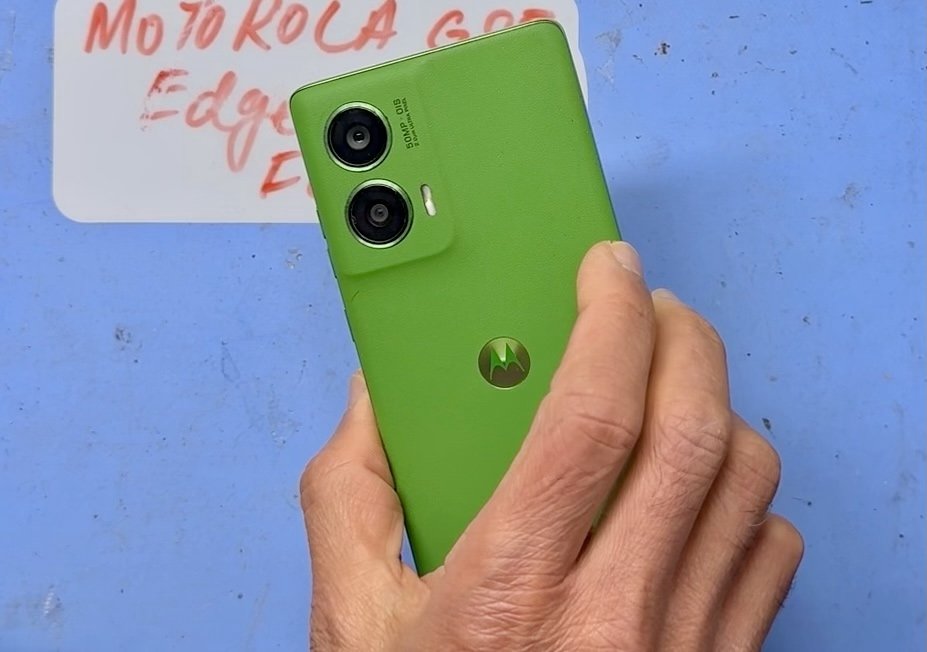
A repair should begin with clear answers, not guesswork. For Motorola Edge 50 Fusion repairs in Melbourne CBD, turnaround and appointment availability depend on the fault and the work involved. Before handing over your phone, it helps to understand how timing is assessed, how your passcode and personal data are handled, and what warranty coverage applies.
A damaged or unreliable phone can interrupt work, plans and everyday conversations, so it’s natural to want a straightforward picture of what happens next. This guide explains the practical details to consider, including how the type of repair and parts needed can affect timing, and what to know about access to your device and its information.
You’ll also learn how to approach passcode privacy and warranty questions with confidence, so you can make an informed decision before repair begins. From the first assessment to the return of your phone, the aim is simple: know what to expect and keep your personal information in mind throughout the process.
Key Takeaways
- Before handing over your phone, review how passcode access and personal data may affect the repair, and prepare your device with privacy in mind.
- Repair timing depends on the fault, the work required and parts availability, so understanding the repair process helps set realistic expectations.
- Read the warranty terms carefully to understand what the coverage applies to and how it relates to the repair performed.
- For other device needs, SIMSIM offers services including iPhone Screen Replacement, MacBook Battery Replacement and iPad Charging Port Repair.
Passcode and personal data during repair
Your Motorola Edge 50 Fusion can hold private messages, photos, email and account details. Treat its passcode as sensitive information, not as a routine handover detail. Before leaving the phone for repair, establish what testing requires and limit access to what’s necessary. A cracked screen, for example, can make it difficult to demonstrate touch problems without the display working.
Decide how to handle passcode access
A screen repair and a fault diagnosis can involve different checks. Some checks can happen without opening personal apps; others may require using the screen or testing a function after repair. Ask which test needs an unlocked phone, then decide how to proceed. Don’t assume every repair requires your passcode, and don’t share it without understanding why access is needed.
If access is necessary, consider being present while the relevant function is tested. You could unlock the device yourself and open the affected feature rather than writing your passcode on a note. Avoid sharing your Google account password, email password or banking PIN. These credentials are separate from the screen lock and can expose far more than a repair test needs.
Back up important information first
Before handing over the device, make a fresh backup of important files and conversations. Use your phone’s existing backup options, then check that essential photos, contacts and documents appear in the destination account or storage. A backup is useful only if you can access it, so confirm your account details from another device before relying on it.
If work files are stored only on the phone, copy them to a place you can access independently. Check that recent photos have finished syncing rather than assuming they’re included. A backup also gives you a safer starting point if troubleshooting affects stored information. Keep important account recovery details in a separate, secure place.
Reduce what appears on the screen
Notifications can show message previews, email subjects and verification codes while a phone is locked. Before the handover, review your lock-screen notification settings and hide sensitive previews if that suits your needs. You can also close private apps and remove visible widgets that show personal information. These steps reduce casual exposure without changing your passcode.
Consider who might see the device during testing. A family message preview or work email subject can reveal private details at a glance. If you use the phone for banking, avoid leaving a banking app open. Sign out of sensitive apps only if you know how to sign back in and can access the required authentication method.
Prepare the phone and SIM
Before leaving home or work, remove the physical SIM if the repair doesn’t require it. Store it safely, because it connects your number to calls and messages on another compatible device. If you rely on an eSIM, avoid changing its settings unless you understand how to restore service. Keep the phone’s case and accessories separate unless they’re needed to explain a specific fault.
Describe the problem in plain language rather than relying on memory. Note whether the screen is unresponsive in one area, flickers or registers touches without input. Include when the fault occurs, such as after charging or when opening a particular app. Clear notes help distinguish a display issue from an app or charging problem without exposing private conversations.
Check privacy at handover and collection
At handover, describe the fault and agree on the test needed to verify the repair. Keep your passcode private unless you’ve chosen a clear, limited way to provide access. A passcode is recommended for full testing. Without it, the camera, Wi-Fi and Bluetooth can’t be verified. At collection, enter the passcode yourself and test the repaired function, touch response and any feature involved in the original fault.
After collection, review your accounts and notifications. Confirm your SIM or eSIM works, reopen the apps you use and make sure your backup remains accessible. If you notice a new sign-in alert, review it through the relevant account settings. A careful handover, verified backup and deliberate collection check help keep your personal data in view throughout the repair.
Repair turnaround time and availability
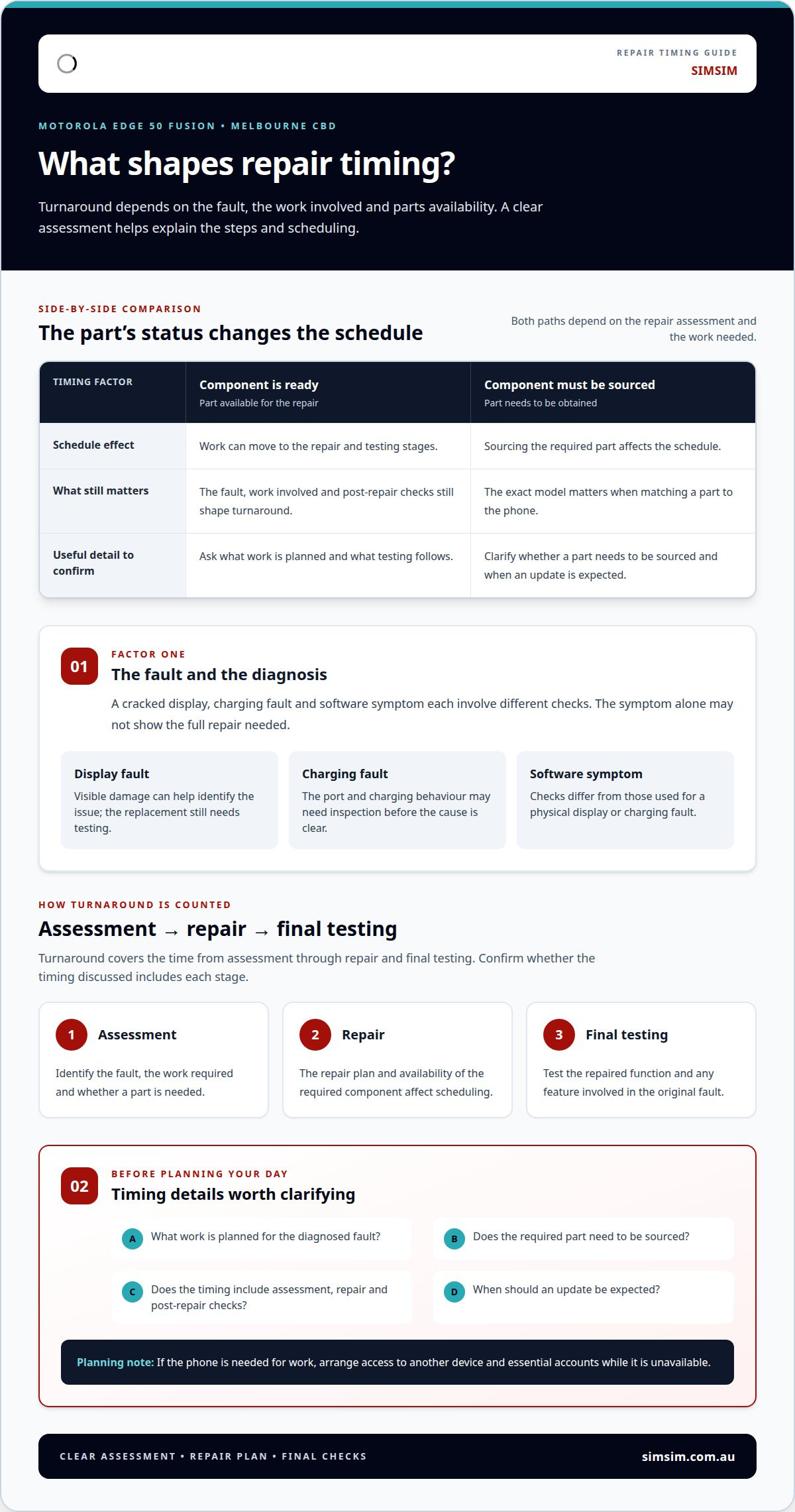
Repair timing depends on the fault, the parts required and the work involved. For Motorola Edge 50 Fusion repairs in Melbourne CBD, a clear assessment helps explain the steps and scheduling.
Repair Turnaround
Turnaround covers the time from assessment through repair and final testing. A cracked display, charging fault and software symptom each involve different checks, so the repair type matters. Ask what work is planned, whether a part needs to be sourced, and what testing follows. These details help you plan around the phone being unavailable without relying on a generic time estimate.
The device’s condition can change the work involved. For example, a phone that won’t charge may need inspection of its port and charging behaviour before the cause is clear. A display fault may be easier to identify from visible damage, but the replacement still needs testing. A diagnosis followed by a repair plan gives you a clearer picture than the symptom alone.
Parts supply is another practical factor. If the required component is ready, work can move to repair and testing; if it needs to be sourced, that step affects the schedule. The exact model matters, so identify your device as a Motorola Edge 50 Fusion rather than simply saying “Motorola”. Accurate details help avoid confusion when matching a part to the phone.
Before arranging your day, ask about the repair sequence and when you’ll receive an update. Clarify whether the timing includes assessment, repair and post-repair checks. If you need the phone for work, arrange access to another device and essential accounts. That small plan can reduce disruption if the repair takes longer than the hands-on work.
- Describe the fault: Explain what happens, such as a blank display or intermittent charging.
- Share relevant history: Mention a recent drop or contact with liquid, if either occurred.
- Understand the sequence: Separate diagnosis, parts sourcing, repair and testing.
- Plan around access: Keep essential contacts and work information available elsewhere.
These steps don’t set a fixed duration, but they make the factors behind the schedule easier to understand. A repair involving additional diagnosis or a sourced component has different stages from a straightforward repair using an available part. Clear communication about those stages helps you decide whether the proposed timing fits your plans.
Melbourne CBD Availability
Availability in Melbourne CBD involves both appointment access and the capacity to begin the required work. The store is at 80 Flinders St, Melbourne VIC 3000. Before travelling, arrange your visit and describe the model and fault. This gives the repair team useful details for planning the assessment and helps you avoid arriving without an agreed time.
Your schedule can shape the best handover plan. If you’re coming from a nearby office, allow time to explain the fault and understand the next steps. If you’re travelling into Melbourne CBD, factor in the return journey as well as the repair timing. Planning your visit is more practical than assuming the phone will be ready during a particular break.
Availability and repair duration are related, but they’re not the same. An appointment may allow an assessment, while the work itself depends on the diagnosis and parts required. A phone with a damaged screen and a separate charging issue, for instance, may need checks beyond the visible damage. Describe each symptom when arranging the repair so the assessment accounts for the full problem.
Keep your handover focused. Bring the Motorola Edge 50 Fusion, explain when the fault occurs, and note any functions that still work. For example, say whether the phone responds to touch or charges with a cable. Those observations help establish what needs testing. For a planned CBD visit, book a repair appointment and include the device model and fault details.
Repair warranty
A repair warranty describes the coverage attached to specific repair work, parts or both. For a Motorola Edge 50 Fusion, read the written terms before authorising work, then keep them with your repair record. The key details are the covered component, coverage period, exclusions and steps for reporting a problem. These details show what the warranty is designed to address.
What the warranty covers
Read the written terms for the specific repair. If the work replaces a screen, look for wording that identifies the replacement display or related labour. If the fault concerns charging, check whether the document refers to the charging component or another part. A broad phrase such as “repair warranty” is less useful than clear wording about the work performed.
Separate the repaired component from unrelated phone functions. For example, terms describing display work don’t automatically explain coverage for a later camera fault. Ask for the warranty terms in writing and keep the repair description with them. This makes it easier to compare a new symptom with the component and work recorded at handover.
Check whether the terms describe parts, labour or both. A document might explain how a replacement component is covered while treating labour separately. Don’t assume the same condition applies to every part of the repair. Keep a clear record of the work, date, component and stated coverage period.
Read exclusions and conditions
Look for exclusions that explain what the warranty doesn’t cover. Terms may address accidental damage, liquid exposure, unauthorised opening or a fault unrelated to the original repair. Read each condition alongside the covered work. For example, a fresh impact mark could make it harder to distinguish new damage from a problem with an earlier screen repair.
Also note any care or handling instructions included with the written terms. Keep the Motorola Edge 50 Fusion away from situations that could cause further damage, and don’t attempt to open the device yourself. If the phone develops a new issue, record what happened and when. A brief note helps separate a recurring symptom from a different fault.
Warranty terms aren’t a general promise that every future problem will be repaired. Their scope is set out in the written conditions. Read about the process as well as the coverage: where to report an issue, what information to provide and whether the phone must be assessed before a remedy is considered. Those details help you know what to do.
Keep useful repair records
Save the receipt, repair description and warranty document together. Record the device model, the fault reported and the work completed. If the screen was repaired, keep a note of any touch or display symptoms that remained at collection. These records provide a practical reference if the same symptom appears again.
At collection, test the repaired function and describe any concern before leaving. For a display repair, check touch response across the screen and note any visible issue. For another repair, test the function connected to the original fault. A clear, timely description helps distinguish an immediate concern from later damage or a separate problem.
If a problem appears after repair
Follow the reporting steps in the written warranty terms. Describe the symptom plainly, include when it began and provide the repair record. For example, “the lower part of the screen stopped responding after collection” is more useful than “the phone is broken”. Avoid attempting a home repair first, as opening the phone could complicate the assessment.
Keep your notes factual: what the phone does, when the issue occurs and whether anything changed beforehand. A photo or short video can help show an intermittent display symptom. Bring the device and relevant paperwork together for assessment, and refer to the written coverage rather than relying on a verbal summary.
To arrange an assessment and discuss the repair terms for your device, book a repair appointment.
SIMSIM Repairs: iPhone Screen Replacement
SIMSIM Repairs offers iPhone Screen Replacement for a cracked display, damaged screen or touch issues. It also provides MacBook Battery Replacement and iPad Charging Port Repair for other device problems.
Before arranging an iPhone screen repair, note what’s happening. For example, record whether the display is cracked, touch response is unreliable or the screen stays dark. Keep your iPhone model handy, too, so you can describe the device and issue clearly. You can also explore the SIMSIM Repairs YouTube channel while considering what support may suit your device.
If you need help with an iPhone screen, contact SIMSIM Repairs or visit simsim.com.au.
Make a Clear Next Move
Choose a repair plan that fits how you rely on your phone each day. If the fault is affecting work, travel or staying in touch, decide what you need to keep accessible while the device is assessed. A simple plan can make the handover more manageable and help you move forward with confidence.
SIMSIM Repairs also provides iPhone Screen Replacement, MacBook Battery Replacement and iPad Charging Port Repair in Melbourne CBD. Each service addresses a different problem, so focus on the device and fault that need attention now.
If you’re ready to take the next step with Motorola Edge 50 Fusion repairs in Melbourne CBD, contact SIMSIM Repairs today to arrange a booking. Share the model and the issue you’re experiencing, and start with a clear account of what your phone needs. A thoughtful repair decision begins with the right details, and you can take that step when you’re ready.
Frequently Asked Questions
Where can I get a Motorola Edge 50 Fusion repaired in Melbourne CBD?
SIMSIM Repairs is located at 80 Flinders St, Melbourne VIC 3000. For Motorola Edge 50 Fusion repairs in Melbourne CBD, share the model name and fault when arranging a visit. For example, describe whether the display is cracked, the phone won’t charge, or the camera isn’t working. Clear details help direct the assessment to the issue you’re experiencing.
Which Melbourne CBD repair stores offer Motorola Edge 50 Fusion screen replacement?
SIMSIM Repairs handles phone repairs in Melbourne CBD, including Motorola devices. If your Edge 50 Fusion screen is damaged, describe what you can see and feel: cracks, dark patches, flickering or missed touch input. Mention whether the display still shows an image. Those observations help distinguish visible screen damage from a separate fault affecting the phone’s operation.
Can Melbourne repair stores fix the Motorola Edge 50 Fusion charging port, camera, or water damage?
SIMSIM Repairs works on Motorola devices and provides phone hardware repairs, including camera and water-damage services. Describe the exact symptom, such as a loose charging connection or a camera that won’t focus. For liquid exposure, don’t turn on the phone. Bring it in the same day or next day, or dry it before mailing; water-damage repairs take 24-72 hours depending on severity.
How long do Motorola Edge 50 Fusion repairs take in Melbourne CBD?
Timing depends on the fault, required parts and repair work. A display issue may follow a different assessment from intermittent charging or a phone that won’t start. Water-damage repairs take 24-72 hours, depending on severity. For other faults, share the symptoms when arranging the repair and factor in assessment and testing, rather than planning around a generic time estimate.
Do Motorola Edge 50 Fusion repairs use genuine Motorola parts, and what warranty is included?
SIMSIM Repairs describes its repairs as using genuine parts, but that doesn’t establish that every replacement component is Motorola-branded. Ask for the repair record to identify the part used. Read the written warranty terms for the specific work, including the component covered, coverage period and exclusions. Keep that paperwork with your receipt so you can refer to it if an issue arises.
What should I do before taking a Motorola Edge 50 Fusion in for repair?
Back up important files, note the symptoms and keep your Google account details accessible. A passcode is recommended for full testing; without it, the camera, Wi-Fi and Bluetooth can’t be verified. A SIM card isn’t required, but without it the phone can’t be fully tested. If the device has water damage, do not turn it on. Bring it in the same day or the next day, or dry it before mailing.
Which Motorola Edge 50 Fusion repair services near Melbourne CBD offer walk-ins, bookings, or mail-in repairs?
SIMSIM Repairs accepts walk-ins, and you can arrange a booking or mail in the device. The store is at 80 Flinders St, Melbourne VIC 3000. For mail-in repairs, send the phone itself, not accessories or original packaging. A SIM card isn’t needed, but testing is limited without it. Include the passcode if you want camera, Wi-Fi and Bluetooth checked.