

A slow MacBook needs a fix in Melbourne that starts with finding the cause, not guessing at the repair. Performance work can range from macOS troubleshooting to storage replacement with data migration, so the cost depends on what’s behind the slowdown. Software issues generally cost less to address than storage replacement and migration.
If apps take a long time to open or the spinning beach ball keeps appearing, it’s easy to suspect your MacBook has reached the end of its useful life. Often, though, memory pressure, resource-heavy processes or unused software may be contributing to the sluggishness.
This guide explains how to spot those common causes, what you can try yourself and what may affect repair costs. You’ll also learn when persistent slowness, crashes or overheating point to a deeper issue that needs professional troubleshooting.
Key Takeaways
- MacBook repair costs depend on the cause: software troubleshooting is different from storage replacement and data migration.
- Low available memory can push a Mac to use storage as swap space, so review storage use as well as open apps.
- Activity Monitor can help you spot apps and processes using substantial CPU or memory resources.
- Quit apps you’re not using, close excess browser tabs and review login items to reduce background load.
- Ongoing lag, crashes or overheating may point to a deeper software or hardware issue that needs diagnosis.
How much does MacBook performance repair cost?
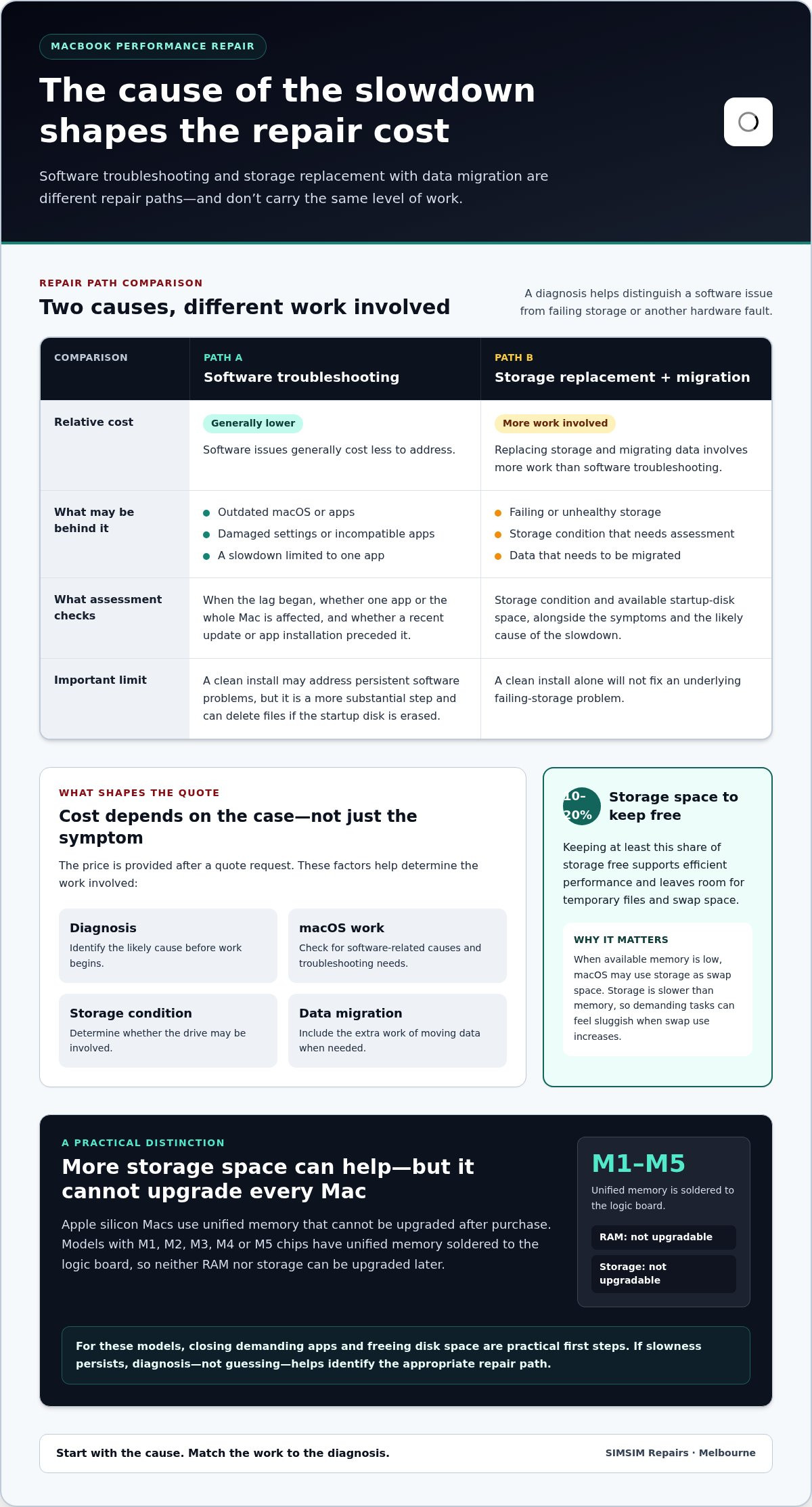
MacBook performance repair costs depend on the cause of the slowdown. Software-only troubleshooting generally costs less than replacing storage and migrating data. The price depends on the case and is given after a quote request. Diagnosis, macOS work, storage condition and data migration shape the cost.
A MacBook that starts running slowly after an update may need software troubleshooting, not hardware replacement. Outdated macOS or apps can cause compatibility problems, instability or delays. To check for updates, open the Apple menu, then System Settings and General, and select Software Update. Install available macOS updates, then update apps through their usual update method.
Before updating, check that your important files are backed up and that the Mac has enough free storage. An update that cannot complete may leave the system in a poor state. If one app remains slow, check its documentation for system requirements. An app designed for a different processor or graphics card may struggle on your Mac.
Software issues can build up through damaged settings, incompatible apps or accumulated problems in macOS. Troubleshooting usually starts by identifying when the lag began and whether it affects one app or the whole Mac. For example, if Safari is slow but Finder opens normally, the issue may be limited to Safari, its extensions or open tabs.
A clean install is a more substantial step than an ordinary update. It removes the existing macOS installation and starts afresh, so it may address persistent software problems. It also risks deleting files if the startup disk is erased. Back up documents, photos and work files first, and make sure you can access your Apple Account and important app sign-ins.
Before bringing your MacBook in, back up important files to Time Machine or another separate storage device, then confirm the backup opens. Note the MacBook model, macOS version, recent updates and exact symptoms, such as slow startup or app crashes. These details help distinguish software trouble from failing storage or another hardware fault.
A repair assessment should identify the likely cause before work begins. Useful checks include whether the slowdown affects every account, whether it began after installing an app and whether the startup disk has adequate free space. If a storage drive is failing, a clean install alone won’t fix the underlying hardware problem. Storage replacement may also require data migration, which involves more work than software troubleshooting.
Keep a record of steps you’ve tried, including restarting, updating macOS and removing a recently installed app. That helps avoid repeating changes without a reason. A clean install makes most sense after simpler checks have failed and you have a reliable backup. The right fix depends on diagnosis, not just the symptom of slowness.
Insufficient memory and swap space
Memory holds the information macOS and open apps need at the moment. If an app needs more memory than is readily available, your Mac can slow down. macOS may use part of the storage drive as swap space, temporarily moving information there. Because storage is slower than memory, demanding tasks can feel sluggish when swap use increases.
Several causes can combine. A large photo-editing project, video call and many browser tabs can compete for memory. If the startup disk is nearly full, macOS also has less room for temporary files and swap space. Keep at least 10 to 20 percent of your storage free to support efficient performance.
To review available space, open the Apple menu and choose System Settings, then General and Storage. macOS recommendations can help identify large files and items you may no longer need. Review them before removing anything. Move important videos or archives to another disk or external storage, and delete only files you recognise and no longer need.
Deleting files may free storage space once they are removed from the Bin. Large downloads, old installers and duplicate exports are useful places to start reviewing. If you use iCloud Drive, check whether a file is stored locally before removing it. Keep a separate backup of important work before making broad changes to your MacBook’s storage.
To free storage and clear startup apps, use macOS Storage recommendations, move large files to external storage and delete unneeded items. Then open System Settings, choose General and Login Items, and remove apps you don’t want opening automatically.
Login items matter because they can launch apps or background processes at startup. A cloud-sync app, meeting tool or utility may keep working even when its window is closed. Remove only items you recognise. If you rely on an app for backups or security, leave its login setting unchanged until you understand its purpose.
Memory upgrades depend on the Mac’s design. Apple silicon Macs use unified memory that cannot be upgraded after purchase. Macs with M1, M2, M3, M4 or M5 chips have unified memory soldered to the logic board, so neither RAM nor storage can be upgraded later. For these models, closing demanding apps and freeing disk space are practical first steps.
After clearing space, restart the Mac and reopen your usual workload. Compare performance with fewer apps and browser tabs running. If the Mac still slows down during ordinary tasks, or storage space disappears again, a nearly full or failing drive may be involved. A Melbourne appointment can be a next step when you need help addressing persistent device concerns.
Using Activity Monitor to identify resource-heavy processes
Activity Monitor shows which apps and processes are using your Mac’s CPU and memory. Use it to check whether a particular app, rather than the whole system, may be contributing to slow performance.
Spotting Resource-Heavy Processes
Open Activity Monitor through Spotlight or the Applications folder, then select the CPU tab. Sort the process list by the CPU column to bring heavier users into view. The Memory tab shows how much memory each process uses. Check both views while the slowdown is happening, since an app’s demand can change as you work.
Look for a process that stays near the top while your MacBook lags. For example, a video editor may use substantial CPU while exporting, which can be expected during that task. A browser may show several processes because individual tabs and extensions can run separately. Compare the list with the apps you have open before deciding what to close.
The process name can help identify what’s running, but unfamiliar names aren’t automatically harmful. macOS also runs background processes that support normal functions. If an app you recognise is using heavy CPU while idle, save your work, quit the app, then reopen it. Check Activity Monitor again to see whether the process settles.
Managing Apps and Background CPU Use
Several open apps share your Mac’s processing power, and apps can continue background work after their windows disappear. In Activity Monitor’s CPU tab, check whether a familiar app remains busy when you aren’t using it. Cloud syncing, browser extensions or a paused media task may be worth examining in context.
Quit apps you don’t need using the app’s menu or Command-Q, then check CPU activity again. Save your documents first, since quitting can close unsaved work. Close unused browser tabs, especially media-heavy pages, and review extensions if a browser keeps using resources after its tabs are closed.
If one app is repeatedly responsible, update it or remove it if you no longer need it. Avoid force-quitting processes just because their names look unfamiliar. A system process may support macOS, and stopping it can interrupt normal operation. If performance remains poor after closing known apps and restarting, note the process name and what you were doing. Those details can help identify software, background activity or a deeper issue.
Closing unused apps and removing unnecessary software
Closing a window doesn’t always quit its Mac app. In macOS, the red close button can leave an app running, so choose Quit from the app menu or press Command-Q. Check the Dock for an indicator beneath open apps. This distinction matters when several programs remain active after their windows disappear.
Start with software you recognise and no longer use. Open Finder, choose Applications and review the list before removing anything. If an app has its own uninstaller, use it; otherwise, move the app to the Bin. Don’t delete unfamiliar macOS components or files from system folders. Removing a program you still rely on can interrupt everyday tasks.
Some apps add background helpers or launch at sign-in. Open System Settings, choose General, then Login Items. Review both the items that open at login and those allowed to run in the background. Turn off only entries you recognise and don’t need, such as an old meeting app. Keep essential backup or security software enabled.
Browser software deserves its own tidy-up. In Safari, open Settings and select Extensions to review add-ons. In Google Chrome, open its Extensions page and remove extensions you don’t recognise or use. A shopping assistant or duplicate password tool can continue working in the background. Remove one extension at a time, then test the browser before changing anything else.
- Quit unused apps: Save open work, then use Command-Q rather than only closing windows.
- Review login items: Disable familiar apps you don’t need at startup.
- Remove redundant software: Use the app’s uninstaller when available.
- Trim browser add-ons: Remove an unused Safari or Chrome extension, then retest.
Make changes in stages. Remove or disable one item, restart the Mac and see whether startup or everyday tasks improve. If a work app behaves differently, restore the setting before making further changes. This comparison can help identify which login item or extension affected your MacBook.
Keep useful software current rather than removing it just because it runs at startup. Check the app’s settings for an option to launch only when needed, and install updates that address compatibility problems. If you remove an app, review its login entry too. A leftover helper can continue launching even after the main application is gone.
If the Mac remains slow after a careful cleanup, note which items you changed and when. Persistent lag after restarting can point beyond unused software to storage trouble, overheating or another underlying issue. A clear record of changes helps distinguish an app-related slowdown from a problem that needs further diagnosis.
MacBook performance repair in Melbourne
A restart can clear temporary files and reset background processes, so try that before arranging a repair. If your MacBook remains slow, note what happens after restarting: long startup, repeated app crashes, loud fan activity while idle or lag during simple tasks. These details help distinguish a temporary software problem from a persistent fault.
Diagnosis matters because different causes need different fixes. A technician can assess memory use, macOS behaviour, storage condition and heat-related throttling rather than treating every slow MacBook the same way. For example, lag during a demanding task may point to resource limits, while repeated crashes after restarting may need deeper software or hardware investigation.
Heat offers another useful clue. An overheating cooling system can throttle performance, while constant overheating or a loud fan at idle deserves attention. Storage may also be involved: a nearly full or failing drive can slow everyday work. Disk Utility can verify a disk and try to fix some issues, but note any warnings and back up important files before attempting changes.
Prepare a clear account of the symptoms. Note when the slowdown began, which apps were open, whether the MacBook felt unusually warm and whether a restart changed anything. If your files matter, confirm your backup before repair. iCloud can sync selected files, but a separate backup helps protect a complete set of important data.
- Describe the pattern: Compare slow startup with lag limited to one app.
- Record heat signs: Note persistent warmth or a fan running loudly while idle.
- Protect files: Check your backup before storage or software work.
- Share recent changes: Mention new apps, updates or recurring crashes.
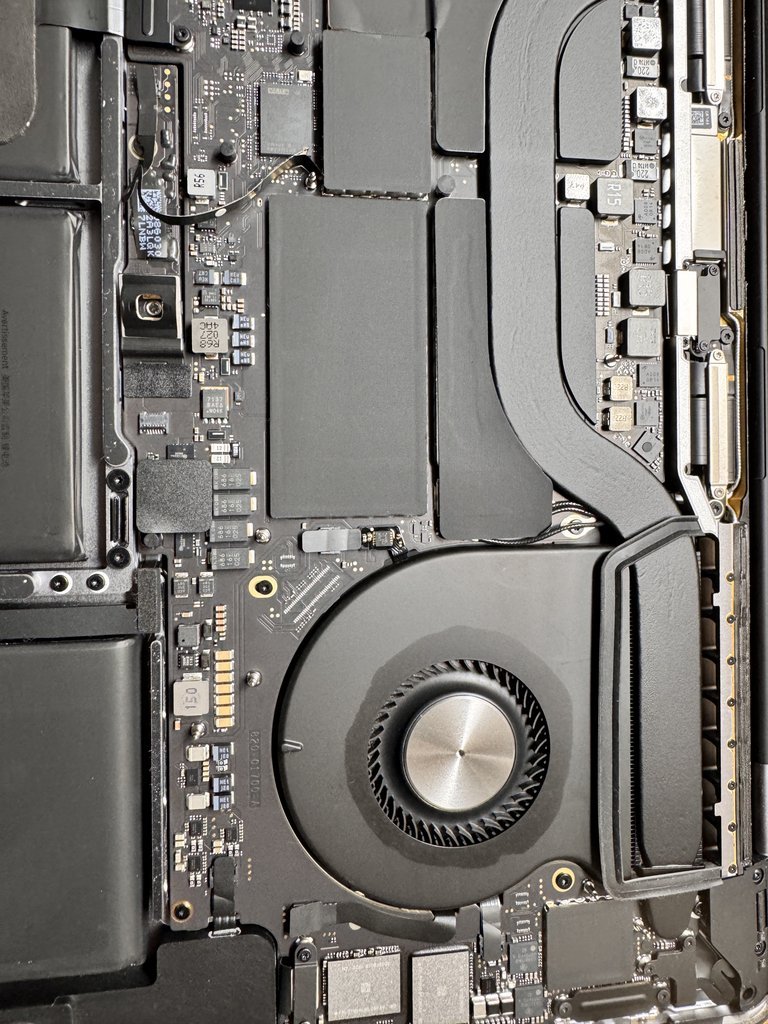
For a MacBook with a traditional hard drive, storage technology may be part of the diagnosis. Replacing that drive with an SSD can reduce boot times from over a minute to roughly 15 seconds. That example applies to suitable older hardware, not every MacBook. Macs sold since late 2020 already include SSD storage, so other causes may matter more.
Before work starts, ask for a clear explanation of the proposed repair and its scope. Find out what the diagnosis found, which work is included and whether data migration is part of the plan. The key takeaway is simple: match the repair to the fault and protect your files before changes begin.
If persistent lag, repeated crashes or overheating are affecting your MacBook, book an assessment in Melbourne to take the next step.
SIMSIM Repairs: iPhone Screen Replacement
SIMSIM Repairs offers iPhone Screen Replacement and MacBook Battery Replacement for battery-related concerns. If your MacBook feels slow alongside short battery life or unexpected shutdowns, a battery issue may be worth addressing. Software, storage or heat problems need a different fix, so match the service to the symptom.
For persistent slowness, use the troubleshooting steps above to note when it occurs and what you’ve already tried. If the signs point to the battery, explore MacBook Battery Replacement as the relevant next step. SIMSIM also provides iPad Charging Port Repair, and you can find its channel through the SIMSIM YouTube page.
Contact SIMSIM to discuss your device, or visit simsim.com.au.
Take the next step with confidence
Choose your next step based on the pattern you’ve observed. If your MacBook’s slowdown appears alongside battery trouble, SIMSIM Repairs offers MacBook Battery Replacement. Battery replacement addresses battery concerns, while persistent lag may need a different diagnosis. Being clear about the symptoms helps you focus on the right support.
SIMSIM Repairs also offers iPhone Screen Replacement and iPad Charging Port Repair for those device issues. For a MacBook running slowly, finding the right fix in Melbourne starts with matching the repair to the cause. A MacBook running slow fix in Melbourne should address the problem you’ve identified, not assume every slowdown has the same cause.
If you’d like to discuss your MacBook, contact SIMSIM Repairs about your device. Bring your notes about the slowdown and the changes you’ve already tried. A clear starting point can make the next conversation more useful, and help you move forward with confidence.
Frequently Asked Questions
MacBook Running Slow?
A slow MacBook can have a software, memory, storage or hardware cause. Notice whether the delay affects one app or the whole computer. For example, if an app stalls while Finder responds normally, the issue may be app-specific. If startup, several apps and ordinary tasks all feel slow, record those symptoms and when they began. That pattern gives a repair assessment a clearer starting point.
How to speed up a MacBook quickly?
Save your work, restart the MacBook, then open only the app you need. A restart clears temporary files and resets background processes. If you’re using a browser, close tabs you no longer need and pause media-heavy pages. Test the task that felt slow before reopening everything. This comparison can help show whether active apps or background activity contributed to the delay.
What are the quickest ways to speed up a slow MacBook?
Try a short sequence: restart, quit apps you aren’t using and close unnecessary browser tabs. Then check available storage in System Settings under General and Storage. If the slowdown began after installing an app, quit it and compare performance without it running. Avoid deleting unfamiliar files or adding cleaner software before you know what is using resources.
How do I check Activity Monitor for apps slowing down my MacBook?
Open Activity Monitor and review the CPU and Memory tabs while the slowdown is happening. Sort by CPU to bring busy processes into view, then compare their names with apps you recognise. Check Memory for apps using substantial resources. A video editor working on an export may be expected to use more CPU; an app staying busy while idle deserves closer attention.
How do I update macOS and check whether a MacBook needs more memory or a new battery?
Open the Apple menu, then System Settings, General and Software Update to find macOS updates. Check app requirements if one program remains slow after updating. Activity Monitor shows memory use, but Apple silicon Macs use unified memory that cannot be upgraded after purchase. To review battery condition, open System Settings and select Battery. Short battery life alone doesn’t prove memory is the cause.
Could malware, overheating, or a failing drive make a MacBook run slowly?
Yes. Unwanted software can consume resources, while an overheating cooling system can throttle performance. A nearly full or failing storage drive may also contribute to persistent slowness. Note signs such as unusual heat, loud fan activity while idle, repeated crashes or storage warnings. Back up important files if you suspect drive trouble, and avoid installing unfamiliar cleanup tools as a quick fix.
How much does MacBook diagnostics or repair cost in Melbourne?
The price depends on the case and is given after a quote request. Software troubleshooting generally costs less than storage replacement with data migration. The work required depends on the diagnosis, including whether the issue involves macOS, storage or another hardware fault. Ask for a written quote that explains the proposed work before repair starts, so you can understand what the estimate covers.
Where can I get a slow MacBook diagnosed or repaired in Melbourne, Australia?
For battery-related concerns, SIMSIM Repairs offers MacBook Battery Replacement at 80 Flinders St, Melbourne VIC 3000. A battery service suits a battery issue, not every cause of slow performance. If your MacBook is also lagging, note when the slowdown occurs and whether battery life has changed. Sharing those details can help focus the conversation on the device problem you’re experiencing.