

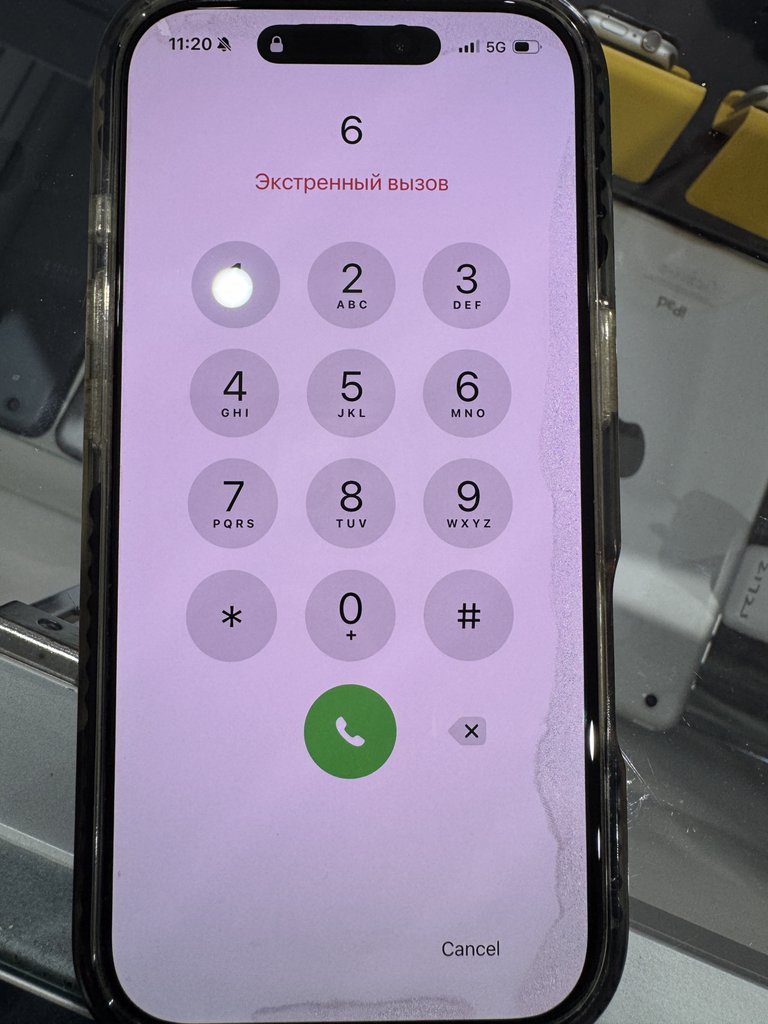
A new screen can look flawless and still need a careful check before you head home. What should you test, and which small differences are worth reporting? The most useful care tips after screen replacement start with a few simple checks, followed by everyday habits that help protect your repair.
It’s natural to feel cautious after having your phone repaired. You want to enjoy a clear display without worrying that a pocket, bag or accidental knock will undo the work. Checking touch response, brightness and the display’s appearance can help you spot concerns early. Knowing what to do if something seems off makes the next step clearer.
This guide gives you a practical screen-check checklist, straightforward ways to reduce scratches and impacts, and signs that call for professional attention. It also explains why a screen can feel or look different and when it’s sensible to have a technician assess it.
Key Takeaways
- Check the display, brightness and everyday touch response with normal, gentle actions, and note any unusual behaviour.
- Screen behaviour can vary by device and repair, so don’t assume there’s a universal settling period.
- These care tips after screen replacement can help reduce everyday risks, but a case and compatible screen protector can’t prevent all damage.
- Persistent touch problems, visible display bleeding, a white screen or dead pixels are reasons to seek a technician’s assessment.
- If you’re concerned about your repaired screen, SIMSIM Repairs technicians can assess it at 80 Flinders St, Melbourne VIC 3000, in Melbourne CBD.
Care Tips After Screen Replacement: What to Expect First
A replaced screen gives you a fresh display for everyday use, but ordinary care still matters. You don’t need to treat your phone as fragile or wait through a universal “settling” period. Repair methods and device designs vary, so follow any guidance provided for your specific repair. Start by observing how the screen looks and responds during normal use, and report anything unusual.
A screen is one part of a smartphone. Checking its visible behaviour is different from assessing the device internally. This repair-focused video illustrates why component testing belongs in technician-led work, not at-home adjustments.
Routine screen care means noticing what you can see and feel. Diagnostics and internal adjustments belong to an expert technician. A visual check is useful, but it doesn’t confirm that every device function has been tested. A passcode is recommended for full functionality testing. Without it, the camera, Wi-Fi and Bluetooth can’t be tested or verified.
What changes after a screen replacement?
The visible screen has been replaced, giving you a display surface for everyday use. Handle your phone as you would any device with a glass screen. You can observe the display and try normal touch interactions without opening the phone, pressing hard or attempting calibration. A screen replacement also doesn’t prove that the phone’s original water resistance has been restored.
If your repair was for an iPhone, SIMSIM’s Apple repair services provide more information about repair work. Advice can differ across devices and repairs, so follow the instructions provided for your phone rather than relying on a fixed waiting time or a general rule.
A simple checklist for collecting your phone
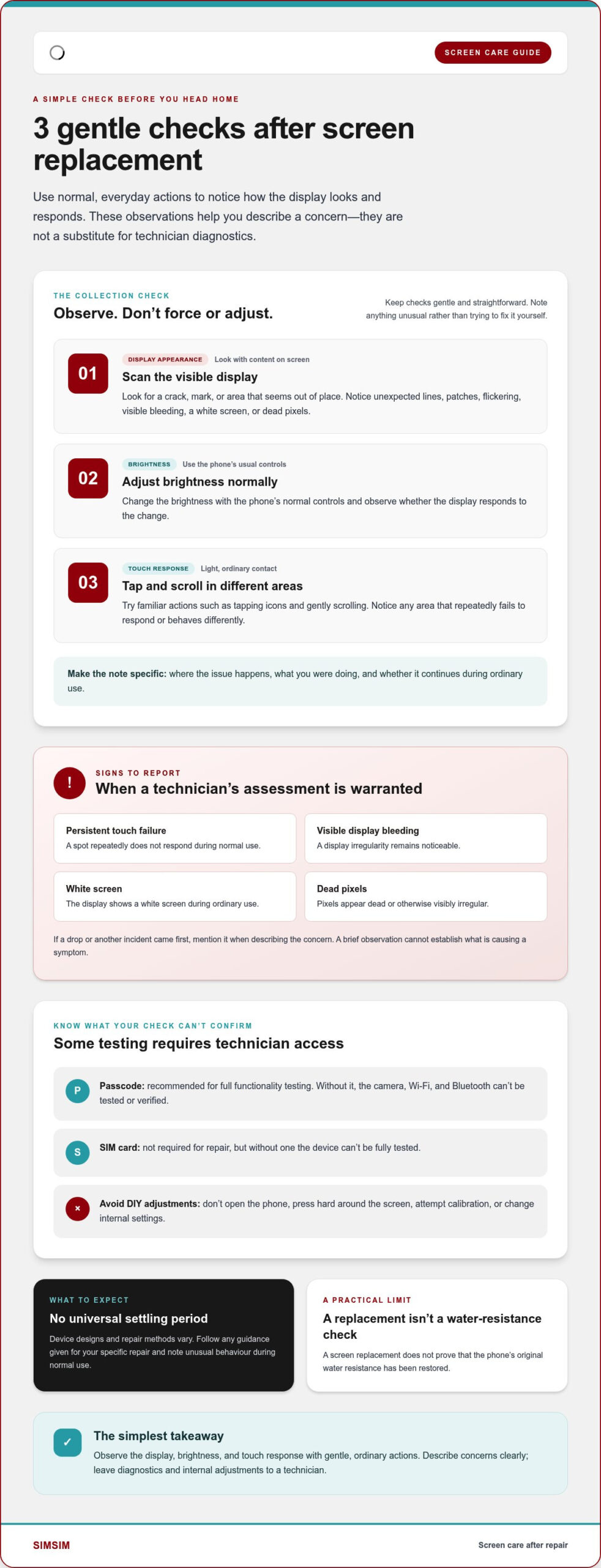
Before leaving, observe the screen during ordinary use. Keep the checks gentle and straightforward:
- Look over the display for visible damage, such as a crack, mark or area that appears out of place.
- View the screen with content displayed. Note obvious irregularities, including unexpected lines, patches or flickering.
- Try ordinary touch interactions across different areas, such as tapping icons and scrolling through a page. Notice any spot that consistently doesn’t respond as expected.
Describe what you observe instead of trying to fix it yourself. For example, note where touch response seems inconsistent or when a visual change appears. Specific observations give the technician a clearer starting point for assessment. These care tips after screen replacement are a practical first check, not a substitute for professional diagnostics if something seems wrong.
For more repair information, visit SIMSIM’s YouTube channel.
How to Check Your Repaired Screen Without Risky DIY Tests
A useful screen check is simple: observe what the phone does during normal use. You don’t need calibration tools, special apps or forceful taps. These care tips after screen replacement can help you describe what you notice. They aren’t instructions for opening the device or changing its internal settings.
Check touch response and display behaviour
Use familiar actions at a comfortable pace. Try a few taps and a gentle scroll in different parts of the screen, then adjust the brightness using the phone’s usual controls. If something seems inconsistent, note where it happens and what you were doing instead of repeating the action over and over.
- Look at the display with ordinary content on screen. Notice any visible bleeding, a white screen, dead pixels, lines or patches.
- Adjust brightness using the phone’s normal controls and observe whether the display responds to the change.
- Tap and scroll in different areas with light, ordinary contact. Note any area that repeatedly fails to respond or behaves differently.
If touch stopped working after a drop, the damage may involve more than the visible glass. Glass and digitizer repair restores touch functionality. Have a technician assess the device rather than opening or adjusting it at home.
Know what a basic check cannot confirm
Your observations are helpful, but they aren’t the same as diagnostic testing by expert technicians. A passcode is recommended for full functionality testing. Without it, the camera, Wi-Fi and Bluetooth can’t be tested or verified. A SIM card isn’t required for repair, but without one the device can’t be fully tested.
Keep your notes specific: “the lower-left area misses taps” gives a clearer picture than “the screen feels wrong.” Describe whether the issue is constant or happens during a particular action, and whether you see a display irregularity at the same time. Don’t try to calibrate the screen, press around its edges, remove components or change internal settings. Those steps go beyond a safe customer check and can make the concern harder to assess.
A brief observation can’t establish what’s causing a symptom. Persistent touch failure, visible bleeding, a white screen or dead pixels warrant a technician’s assessment, especially if they continue during ordinary use. If a drop or other incident came first, mention it when describing the issue.
If the screen continues to behave unexpectedly, you can book a screen assessment with SIMSIM. An expert technician can examine the concern and carry out diagnostic testing as part of the repair service.
Everyday Habits That Help Protect a Replaced Phone Screen
A few steady habits can lower the chance of everyday scratches and knocks after a repair. They can’t make a screen damage-proof, and even a case or protector can’t prevent every crack. The goal is practical risk reduction: avoid common hazards that can catch a phone during a commute, a day at work or a quick moment in your bag.
Keep it covered, clean it gently, and give the screen space away from hard objects and pressure. Consistent routines are more useful than treating any accessory as a guarantee.
Use a case and screen protector thoughtfully
A well-fitting case can help limit contact damage during everyday handling, while a compatible screen protector can help reduce routine scratches. Both are optional. Choose accessories that fit your device, leave the display unobstructed and don’t interfere with normal touch use. After fitting them, try familiar taps and swipes to make sure they still feel comfortable.
If an edge lifts or a protector shifts over the display, don’t force it down or trim it while it’s on the phone. Remove anything that’s interfering only if it comes away easily. Otherwise, get help fitting a suitable accessory. A poor fit can be frustrating, and pressing hard near the edge may put unnecessary strain on the screen.
Keep handling and cleaning gentle
Use a clean, soft cloth to wipe away fingerprints or dust. Keep keys, coins and other hard objects in a separate pocket or compartment rather than loose beside your phone. Separating them reduces rubbing and accidental contact, especially when you’re moving around or reaching into a bag.
- Place the phone where it won’t be pressed under books, tools or other heavy items.
- Avoid bending the device or leaning on it when it’s in a pocket or bag.
- Keep it away from unnecessary moisture and direct heat, such as strong sun or a heat source.
- Don’t press firmly on the display to remove a mark. Wipe gently with the cloth instead.
These small choices help keep daily wear in check without turning phone care into a complicated routine. Pay attention to how you carry and set down your device. A phone wedged against hard objects or trapped beneath something heavy faces avoidable pressure, even with protective accessories.
For practical care tips after screen replacement, treat accessories as an extra layer, not a promise. Gentle handling, a clean cloth and space from sharp or heavy items are a sensible everyday approach to protecting your replaced screen.
Screen Replacement Warning Signs: When to Get Professional Help
A screen concern doesn’t reveal its cause on its own, so focus on what you can observe rather than trying to diagnose it. Persistent touch problems or a clear change in the display deserve attention, especially if they continue during ordinary use. Don’t open the phone or attempt a screen repair yourself. An expert technician can assess the symptoms and carry out diagnostic testing.
Symptoms worth reporting promptly
Use the table to match what you notice with a sensible next step. These are observations, not diagnoses. A symptom alone doesn’t prove that a particular component has failed.
| What you notice | Sensible next action |
|---|---|
| An area repeatedly doesn’t respond to ordinary touch | Note where it happens and arrange a technician assessment. |
| Visible bleeding, a white screen, dead pixels or another unexpected display change | Record what the screen looks like and seek professional help. |
| A new mark, crack or other visible damage | Avoid pressing on the area and have the screen assessed. |
| The behaviour appears only during a particular action or at certain times | Describe what you were doing and whether the symptom persists. |
Useful details are straightforward: which part of the screen is affected, what you were doing when it happened, and whether the issue is constant or intermittent. If the behaviour began after an impact, mention that too. Avoid repeated tapping, pressing on the display or trying adjustments intended for repair technicians. A clear description helps an expert technician understand the concern without risking further damage through DIY attempts.
What to do if the phone is exposed to water
Do not turn on your device. If it’s already on, don’t restart it to check whether it still works. Avoid testing the screen or charging the phone. Arrange to bring or mail the water-exposed device in as soon as possible for professional assessment. Water damage repairs generally take between 24 and 72 hours.
When arranging help, explain when the exposure happened, what kind of contact occurred if you know, and whether the phone was on. Don’t open the device or attempt to dry its interior yourself. The safe next step is a technician-led assessment, not experimentation.
For a screen concern after repair, a technician at SIMSIM can assess the device and perform diagnostic testing. If the phone has been exposed to water, follow the instruction above and arrange to bring or mail it in as soon as possible. For another screen issue, book a technician assessment with SIMSIM.
Need Help After a Screen Replacement? Visit SIMSIM in Melbourne CBD
If your replacement screen continues to behave unexpectedly, a technician can assess the concern and carry out diagnostic testing. You don’t need to work out the cause yourself or attempt adjustments inside the phone. A few clear details about what you’ve noticed can help focus the assessment.
What to prepare before contacting the repair team
Before arranging an assessment, note your device model and describe the screen behaviour in plain terms. Include when you first noticed it and whether it happens every time or only during a particular action. For example, “the top section doesn’t respond when I tap” is more useful than “the phone feels faulty.”
A passcode is recommended for full functionality testing. Without it, the camera, Wi-Fi and Bluetooth can’t be tested or verified. You can still explain the visible screen concern and the touch behaviour you’ve observed. Keep your notes factual, and leave calibration, opening the device and internal adjustments to expert technicians.
Book a screen assessment in Melbourne CBD
SIMSIM provides screen repairs at its Melbourne CBD store at 80 Flinders St, Melbourne VIC 3000. Schedule a repair online or visit the Flinders St store. Where applicable, the stated timeframe is Repair within 30’. This applies where relevant and isn’t a promise of the same repair duration for every device or concern.
For model-specific information, explore the iPhone 16 Pro screen repair page. For broader information about Apple-device repairs, visit SIMSIM’s Apple repair services. These pages can help you find relevant repair context before arranging your next step.
Bring your notes if you visit, or include the details when you schedule online. The technician can assess the screen concern and explain the next steps based on the device’s behaviour. Leave internal adjustments to repair professionals. A clear account of what you’ve seen helps them focus on the concern.
To have a technician assess your screen, schedule a repair with SIMSIM or visit the store at 80 Flinders St, Melbourne CBD. For repair information and videos, explore the SIMSIM YouTube channel.
Make Screen Care Part of Your Everyday Routine
A repaired phone is ready to return to daily life, and the best care is steady rather than stressful. Let the screen’s normal behaviour guide you: if something changes or keeps happening, make a note and leave internal adjustments to a technician. That approach helps you look after your device without treating every small difference as a cause for alarm.
Keep these care tips after screen replacement close at hand as a simple reference. If a concern remains, SIMSIM’s technicians can assess the screen and perform diagnostic testing as part of the repair service.
Schedule a screen repair with SIMSIM when you’re ready for professional support. SIMSIM provides repairs at its Melbourne CBD store on Flinders St.
Frequently Asked Questions
How long should I wait before using my phone after a screen replacement?
There isn’t a universal waiting period for every phone and repair. Follow the repair-specific guidance provided when your device is returned, especially if it differs from general care tips after screen replacement. Don’t invent a “curing” time or test the phone by pressing on its edges. Once you’ve followed the technician’s instructions, return to normal use gently and watch for unexpected behaviour.
Can I use a screen protector straight after a screen replacement?
You can use a compatible screen protector, but follow any fitting or timing advice provided for your particular repair instead of assuming every screen has the same requirements. Choose one that sits neatly on the display and doesn’t interfere with touch use. After fitting it, try familiar actions such as typing a short message or scrolling. If it lifts, shifts or affects touch response, don’t force it into place.
What should I check after getting my phone screen replaced?
Use the phone as you normally would and look for anything inconsistent. Type a short message, scroll through a page and adjust the brightness using the usual controls. Notice whether the display changes unexpectedly or taps in one area are missed. You don’t need special apps or repeated pressure tests. Write down when an issue happens so you can describe it clearly if it persists.
Is it normal for a replacement screen to feel different?
A difference in how the display looks or responds doesn’t automatically prove there’s a fault, but a lasting or disruptive change is worth reporting. Note what feels different: perhaps taps seem less responsive in one area, or the image looks uneven during ordinary use. Avoid trying to correct it with calibration or internal adjustments. Share the specific behaviour with a technician, who can assess the concern.
Can I get my phone wet after a screen replacement?
Don’t assume a screen replacement restores the phone’s original water resistance. Avoid unnecessary moisture and keep the device dry. If it’s exposed to water, do not turn on your device, even to see whether the screen still works. Don’t charge it or attempt to open it. Arrange to bring or mail the device in as soon as possible for professional assessment.
What should I do if my screen has dead pixels or display bleeding after replacement?
Arrange a technician assessment if you notice dead pixels, visible display bleeding, a white screen or another persistent visual problem. These signs don’t establish the cause by themselves, so don’t press the affected area or try to repair the screen at home. Note what the display looks like, when you first saw the change and whether it remains during ordinary use. That description can help guide the assessment.
Do I need my SIM card or passcode for a screen repair?
A SIM card isn’t required for the repair, but without one the device can’t be fully tested. Providing the passcode is recommended for full functionality testing. Without the passcode, the camera, Wi-Fi and Bluetooth can’t be tested or verified.