


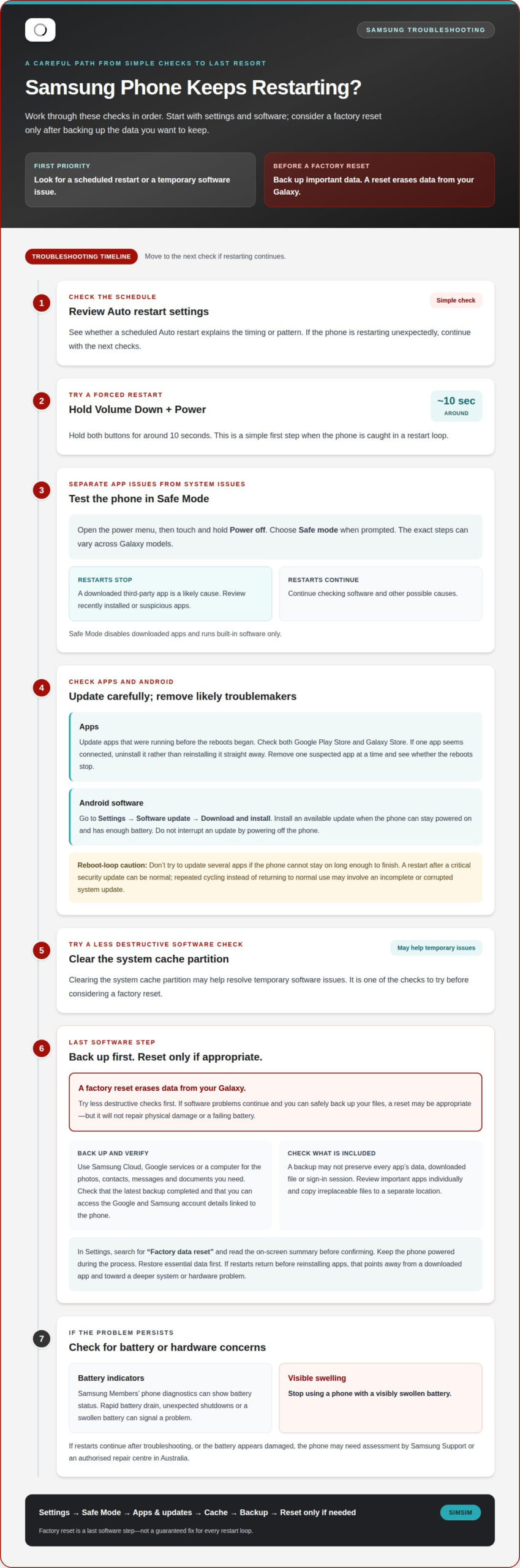
A restarting Samsung phone doesn’t always need a factory reset. The best fix for a Samsung phone that keeps restarting is to start with its Auto restart settings, then check whether an app or temporary system issue is causing the loop. A forced restart, holding Volume Down and Power for around 10 seconds, is a simple first step.
It’s understandable to worry about losing photos, messages and other personal data when your Samsung phone keeps restarting. Try the checks below before considering a factory reset, which should come only after you’ve backed up the data you want to keep.
Start by checking scheduled restart settings, then use Safe Mode to troubleshoot downloaded apps and clear the system cache partition. If the restarts continue, back up your data before considering a factory reset. Persistent restarts may point to a problem that needs repair, whether through local technicians or specialist networks like REPFONE.
Key Takeaways
- Check the Auto restart settings to see whether a scheduled restart explains the pattern.
- Use Safe Mode to help identify whether a downloaded app is behind the repeated restarts.
- Review recently installed apps and remove a likely troublemaker before reinstalling it.
- Clearing the system cache partition may help resolve temporary software issues.
- Back up important data before considering a factory reset, which erases the phone’s data.
Updating, reinstalling or uninstalling troublesome apps
Work through software checks before assuming there’s a hardware fault. Update apps and Android, then see whether the restart pattern changes.
Update Troublesome Apps
Open the Google Play Store and update apps that were running before the reboots began. Check the Galaxy Store too, as some Samsung apps update there. Install available updates, then restart the phone and see whether the same app still triggers a restart. An update may fix compatibility problems, but don’t try to update several apps during a reboot loop if the phone cannot stay on long enough to finish.
Check for Android Updates
Open Settings, choose Software update, then tap Download and install. If an Android update is available, install it when the phone can stay powered on and has enough battery. Updated system software may address crashes, so check whether the restarts continue afterward. Don’t interrupt an update by powering off the phone. Menu names can vary slightly across Galaxy models and Android versions.
- If one app seems connected to the restarts, uninstall it rather than reinstalling it straight away. Installing the same problematic app again could bring the issue back. Remove one suspected app at a time, then use the phone normally to see whether the reboots stop. If they do, leave that app uninstalled until a later update addresses the problem.
- Consider when the restarts began. Samsung Galaxy phones may restart after critical security updates, even when automatic software-update downloads are turned off. A restart after an update can be normal. If the phone keeps cycling instead of returning to normal use, an incomplete or corrupted system update may be involved. Once the phone is stable, check Software update again, and avoid repeatedly forcing an update during a reboot loop.
- Check battery health if restarts continue across different apps and after software checks. Samsung Members’ phone diagnostics can show battery status; rapid battery drain, unexpected shutdowns or a swollen battery can also signal a problem. If the phone keeps restarting after troubleshooting, or its battery appears damaged, contact Samsung Support or visit an authorised repair centre in Australia for assessment. Stop using a phone with a visibly swollen battery.
Use the timing of the problem to guide your next check. Restarts linked to a faulty or incompatible app point toward an app issue, while random crashes can also result from outdated software. Keeping the phone’s system and apps updated is a useful troubleshooting step, but reinstalling an app that caused a problem can bring it back.
If the phone remains in a continuous reboot loop, an incomplete or corrupted system update may be responsible. That doesn’t rule out an app-related cause, so consider both software possibilities if the restarts continue.
Factory resetting and backing up a phone
A factory reset is a last software step, not a routine fix for a Samsung phone that keeps restarting. It erases data from your Galaxy, so back up anything important before you begin.
- Decide whether a reset is appropriate. Try less destructive checks first, such as removing a troublesome app or clearing the system cache. A reset may be appropriate when software problems continue and you can safely back up your files. It won’t repair physical damage or a failing battery, so don’t treat it as a guaranteed fix for every restart loop.
- Back up personal files and account details. Use Samsung Cloud, Google services or a computer to save the photos, contacts, messages and documents you need. Open the backup settings and check that the latest backup has completed. Make sure you can access the Google and Samsung account details linked to the phone, as you may need them during setup after the reset.
- Check what the backup includes. A backup may not preserve every app’s data, downloaded file or sign-in session. Review important apps individually, such as an authenticator, banking app or messaging service, and follow its own backup or transfer process. Copy irreplaceable files to a separate location too. Don’t assume a visible cloud icon means every item is safely stored.
- Consider heat, storage and charging conditions. High temperatures can cause a Samsung phone to restart to protect its components, and low free storage may contribute to restart problems. Let an overheated Galaxy cool, disconnect accessories and free space if storage is nearly full. A faulty charger isn’t established here as the cause, so testing without it is simply one way to isolate charging conditions.
- Reset only after your backup is ready. In Settings, search for “Factory data reset” and read the on-screen summary before confirming. Keep the phone powered during the process, then set it up and install updates carefully. Restore essential data first. If the restarts return before you reinstall apps, that points away from a downloaded app and toward a deeper system or hardware problem.
- Ask about Australian warranty coverage. Repeated restarts alone don’t establish whether a fault is covered. Contact Samsung Support with the phone’s model and a clear description of the restarts, so they can assess the fault against the applicable warranty terms. If you need help with a Samsung phone battery issue, book a phone repair assessment.
Removing recently installed or suspicious apps
Use Safe Mode to check whether a downloaded app is behind the restarts. Then remove likely troublemakers one at a time.
Find Problematic Apps in Safe Mode
Open the power menu, then touch and hold the Power off option. Choose Safe mode when prompted. The exact steps can vary across Galaxy models. Safe Mode disables downloaded apps and runs built-in software only. Use the phone in this mode and see whether it continues restarting. If the restarts stop, a third-party app is a likely cause.
- Compare how the phone behaves. Note whether the restart loop happens while opening a particular app, using a feature or shortly after the phone starts. Safe Mode won’t run downloaded apps, so the problem may disappear there. That contrast is useful evidence, but it doesn’t identify the exact app by itself. Return to normal mode to review installed apps.
- Make a short suspect list. Start with apps installed shortly before the first restart, especially those you used just before the problem began. Check for apps you don’t recognise or no longer use, and consider whether the restarts follow one app’s activity. Don’t remove several apps at once. Changing one thing at a time makes it easier to see what affects the phone.
Uninstall Recently Installed Apps
In normal mode, open Settings, select Apps and choose one suspected app. Tap Uninstall, then use the phone as usual to check whether restarts continue. Start with the most recently installed suspect if the cause is unclear. Avoid reinstalling that app immediately, as installing it again may bring the problem back.
- Repeat the test for each suspect. If the phone still restarts after removing the first app, uninstall the next likely one and observe what happens. Keep notes of each app removed and any change in behaviour. If the restarts stop after one removal, leave that app off the Galaxy while you assess whether an update becomes available.
- Use the Safe Mode result to choose the next step. If the phone restarts in Safe Mode too, downloaded apps are less likely to explain the issue. Don’t keep deleting apps at random; the cause may lie elsewhere in the system or hardware. If normal operation returns only after removing an app, keep the other apps installed and monitor the phone before making further changes.
Clearing the system cache partition
Corrupted files in a Samsung phone’s cache partition may contribute to freezes and restarts. Clearing the partition can help resolve temporary system issues.
- Power off your Galaxy. Use the on-screen power menu, then wait until the screen goes completely dark. Don’t begin while Android is still running. If repeated restarts make shutdown difficult, wait for the phone to turn off before attempting Recovery mode.
- Open the Android recovery menu. With the phone off, press and hold Volume Up and Power together. Keep holding until the Android logo appears, then release the buttons. The recovery menu is separate from the normal Android screen, so touch controls may not work there.
- Find the cache option carefully. Use the Volume Up and Volume Down buttons to move through the recovery menu. Highlight Wipe Cache Partition, then press Power to select it. Read each menu label before confirming, because the recovery screen also contains options for resetting the phone.
- Confirm only the cache-partition action. If a confirmation screen appears, move to the option that confirms Wipe Cache Partition and press Power. Don’t choose Wipe data/factory reset; that is a different action. Check the selection carefully, especially when the phone’s buttons control the menu.
- Restart Android from recovery. After the cache operation finishes, highlight Reboot system now and press Power. Let the Galaxy start normally, then check whether it still freezes or restarts during ordinary use. The first start may take longer than a usual restart.
- Assess the result before repeating steps. Use the phone normally and note whether restarts continue, stop or happen during a particular task. Clearing the cache partition may resolve temporary system trouble, but it won’t identify every possible cause. If the same loop continues, avoid selecting other recovery options at random.
- Stop if the menu differs. Samsung Galaxy models can display different recovery layouts. If Wipe Cache Partition isn’t visible, don’t select an option with a similar name. Exit only through a clearly labelled restart option, then check the recovery instructions for your exact model before trying again.
Keep the recovery sequence limited to the named cache action. Start only after the phone is off, then hold Volume Up and Power (Bixby) until the Android logo appears. In the recovery menu, use the volume buttons to reach Wipe Cache Partition and Power to select it. Check the displayed wording before confirming; if it does not clearly identify that action, stop rather than substituting another menu choice. This keeps the task aligned with the stated cache-partition procedure and avoids guessing from a similar label.
Afterward, use the clearly labelled restart choice to leave recovery, and let Android start before judging the result. If the phone continues to restart, don’t explore unrelated recovery options. Keep any further attempt within the same button sequence. The key points are to start with the phone off, release the buttons when the Android logo appears, and select the named cache option with the volume and power buttons. Pause at each label rather than choosing by position or approximation.
Scheduled Auto restart settings
Samsung Galaxy Auto restart can make a phone restart by design. Checking this setting is a useful first step when your Samsung phone keeps restarting.
- Open the Auto restart controls. In Settings, go to Device care, then Auto optimisation. Look for scheduled and as-needed Auto restart options. Menu labels and locations can vary by Galaxy model and software version. If the path differs, use the Settings search field and enter “Auto restart” to find the relevant controls.
- Check whether either option is enabled. Samsung’s Auto restart feature is designed to restart a phone periodically to help it run efficiently. A planned restart may explain a repeatable pattern, especially if it happens while the phone is idle. Before changing the settings, note whether their timing matches the restarts you’ve observed.
- Disable both Auto restart options for testing. Turn off scheduled Auto restart and as-needed Auto restart in the Auto optimisation settings. Disabling only one may leave the other active. Use the phone normally afterward and watch whether unexpected restarts continue. If they stop, the setting may have contributed to the behaviour.
- Check the conditions that allow Auto restart. On supported Galaxy phones, the feature can run only when the screen is off, the device isn’t in use, the battery is above 30%, and SIM card lock is turned off. These conditions help explain why a scheduled restart may not happen every time. They don’t prove every reboot has the same cause.
- Consider a software issue if restarting persists. A software problem can leave a Galaxy stuck in a reboot loop when Auto restart is enabled. Samsung recommends checking Device Care’s Auto-Restart setting and disabling it when enabled. If both options are off but restarts continue, move on to other troubleshooting instead of repeatedly toggling the same settings.
- Use the result to choose what to try next. If disabling Auto restart changes the pattern, leave it off while you monitor the phone. If your Samsung phone keeps restarting despite this change, another fix may need to address a different software or hardware cause. For persistent trouble, book a Samsung phone repair.
SIMSIM Repairs
SIMSIM Repairs is a practical next step when your Samsung phone keeps restarting after software troubleshooting. A restart loop that continues with Auto restart disabled, troublesome apps removed and the cache cleared may need hands-on repair assessment rather than another reset. Describe when the restarts began and which steps you’ve tried; that context helps clarify what to consider next.
SIMSIM Repairs handles device repairs, including Samsung Galaxy Back Glass Repair. Back-glass damage won’t explain every restart, so the right response depends on the fault. If your phone still restarts or has visible damage, contact SIMSIM Repairs to discuss the next step.
Choose a clear next step for your Samsung
Persistent restarts can make ordinary tasks feel uncertain. To guide your next step, note whether the phone restarts during charging, while opening a particular app or when sitting idle. That pattern can help distinguish a software trigger from a fault that needs hands-on assessment.
If the issue continues after troubleshooting, avoid repeating a factory reset without a reason. SIMSIM Repairs in Melbourne CBD can assess whether your Samsung phone needs hardware attention, including battery replacement where appropriate. Note the restart pattern and mention which steps you’ve already tried when arranging a repair.
For help deciding what to do next, contact SIMSIM Repairs. A fix for a Samsung phone that keeps restarting starts with understanding the pattern, then choosing the next step carefully. You’ve already narrowed the possibilities; now you can move forward with a little more clarity.
Frequently Asked Questions
How to fix a Samsung Galaxy phone that keeps restarting?
For a practical Samsung phone keeps restarting fix, remove the case, check that the Power button isn’t stuck and disconnect accessories. If the phone stays on, uninstall any app added just before the problem began, then check for software updates. A damaged battery or charging port can also cause repeated shutdowns. If the phone restarts while idle or connected to a reliable charger, SIMSIM Repairs can assess it in Melbourne CBD.
How to start a Samsung phone in Safe mode and identify problematic apps?
Safe Mode temporarily disables downloaded apps, helping you check whether one is triggering the restarts. Turn the phone off, then turn it on. When the Samsung logo appears, press and hold Volume down until the lock screen loads. “Safe mode” should appear near the bottom of the screen. If the phone now runs normally, remove recently installed or updated apps one at a time, restarting normally after each removal to see whether the issue returns.
How to update Samsung Galaxy software and apps to fix restart issues?
Install available updates through Settings > Software update > Download and install, then update apps through both the Google Play Store and Galaxy Store. Keep the phone connected to a stable Wi-Fi network and make sure it has enough charge to complete an update without shutting down. If it repeatedly restarts before you can finish, don’t keep retrying; seek diagnosis. SIMSIM’s YouTube channel is also available for repair-related guidance.
How to clear cache partition on a Samsung Galaxy phone safely?
Use Recovery mode to clear the cache partition without choosing “Wipe data/factory reset.” Turn the phone off, then use the button combination for your model to open Recovery mode. Some newer Galaxy phones require a USB connection to a computer. Select “Wipe cache partition” with the volume buttons, confirm with the Power or Side button, then choose “Reboot system now.” Menu names and button combinations can vary by model.
How to factory reset a Samsung Galaxy phone that keeps rebooting?
Factory reset only after backing up anything you can access, because it erases personal data and settings. If Settings remains usable, look under General management for “Reset” and “Factory data reset.” If the phone can’t stay on, use Recovery mode and choose “Wipe data/factory reset,” not “Wipe cache partition.” You may need to sign in to an account previously used on the phone. If it still reboots after resetting, book a hardware assessment with SIMSIM in Melbourne.