

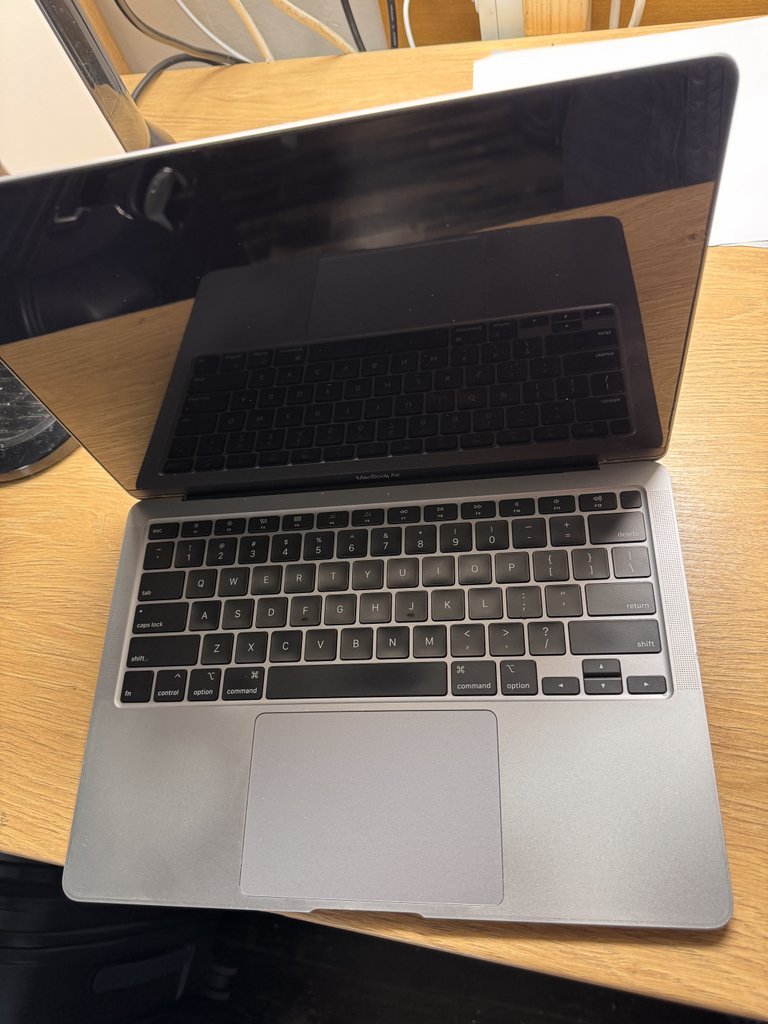
What if keeping your MacBook in good shape came down to a few steady habits, not a collection of cleaning apps or risky online fixes? The most useful macbook maintenance tips 2026 are practical: care for the battery, keep storage organised, clean the device safely and notice changes before they disrupt your day.
It’s understandable to feel unsure about which advice to follow. Battery life can fade, storage can fill and a slowdown can leave you wondering whether it’s a settings issue or a hardware fault. Regular care won’t prevent every problem, but it can help you look after your MacBook and recognise when something has changed.
This guide lays out a realistic routine for everyday use, from software updates and backups to safe cleaning and battery awareness. You’ll learn which warning signs deserve attention, which steps are sensible to handle yourself and when a technician’s diagnosis is the safer next step. No complicated rituals, just clear, useful care to help keep your MacBook organised and ready for work.
Key Takeaways
- Use these macbook maintenance tips 2026 to build a simple routine for backups, software updates, storage checks and app housekeeping.
- Check Apple’s current guidance for macOS updates and supported versions, and avoid treating one battery setting as right for every MacBook.
- Separate safe everyday care from risky cleaning or battery “fixes” that may not suit your model.
- Notice whether slowdowns, charging concerns, display issues or keyboard and trackpad problems persist or worsen.
- Learn when professional assessment may be the sensible next step, including for MacBook Air and MacBook Pro repairs at SIMSIM in Melbourne CBD.
MacBook maintenance tips for 2026: what routine care can, and cannot, do
A manageable routine is more useful than a long list of rules. Think of MacBook maintenance as software upkeep, sensible handling, storage awareness and regular backups. These habits can help keep everyday work organised and reduce avoidable surprises, but they can’t reverse component damage or guarantee that a fault won’t occur. The MacBook hardware lineup spans different models, so practical care should leave room for differences between devices.
MacBook maintenance is preventive user care, not a repair guarantee. The aim is to look after your files and device, and to notice when a problem needs more than routine attention. That’s the guiding idea behind macbook maintenance tips 2026: a steady routine without risky tweaks or promises that maintenance can prevent every fault.
For a quick overview, handle the computer carefully during everyday use, review storage and app clutter periodically, and keep backups and software updates in your regular routine. How often you do each task can depend on how you use your MacBook and the guidance available for its model.
Which MacBook maintenance tasks matter most?
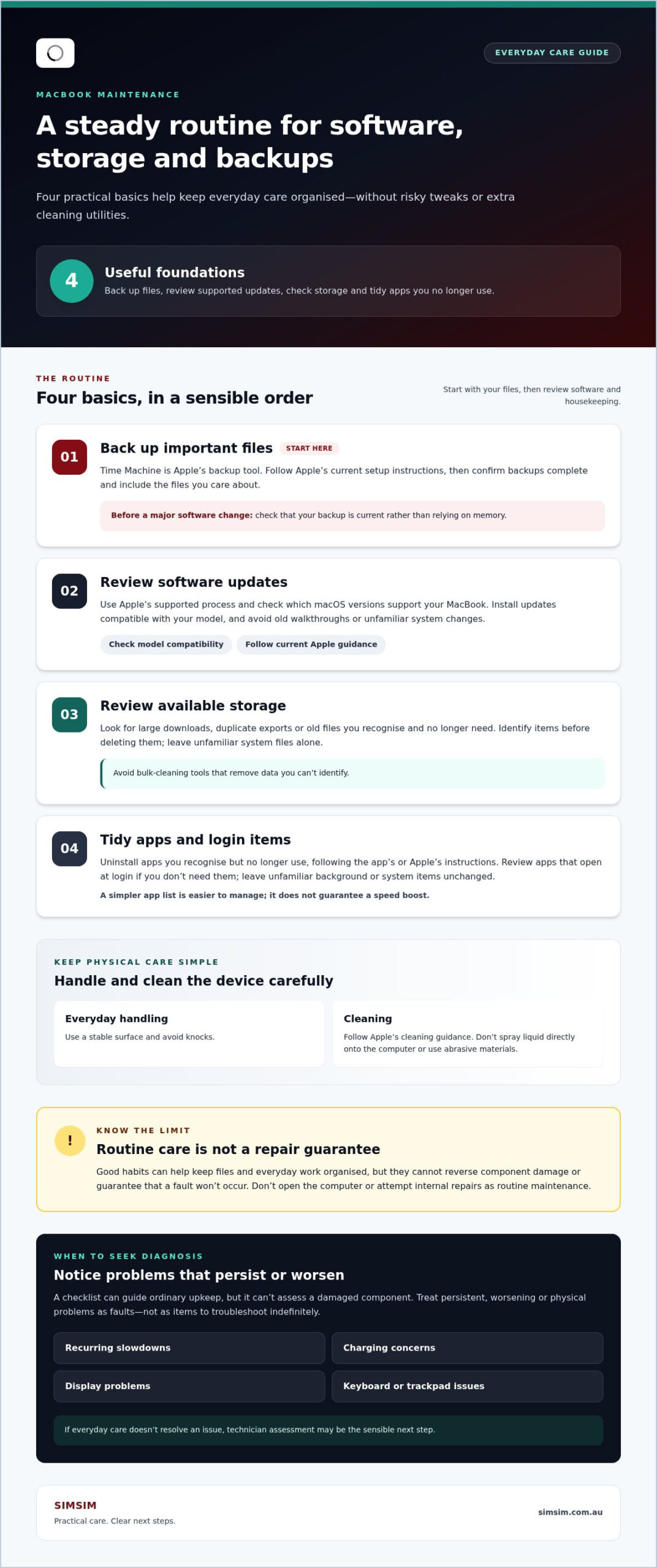
Start with four useful basics. Backups give you a way to recover important files if something goes wrong. Supported software updates help keep the system current, but check Apple’s guidance for your model before updating. A storage review can help you find large files you no longer need, while app housekeeping lets you remove software you don’t use. Careful handling, such as keeping the computer on a stable surface and avoiding knocks, is another straightforward habit.
Keep the routine proportionate. You might check available storage during a regular review, while backups and updates can follow a schedule that suits your work and Apple’s current instructions. There’s no need to install multiple cleaning utilities or change settings simply because a list recommends it.
When is a maintenance checklist not enough?
A checklist can guide ordinary upkeep, but it can’t assess a damaged component. If a problem persists, worsens or involves physical damage, treat it as a fault rather than another item to troubleshoot indefinitely. Don’t open the computer or attempt internal repairs as routine maintenance. Internal work needs proper diagnosis and technician involvement, not improvised fixes.
Recurring slowdowns, charging concerns, display problems, or keyboard and trackpad issues deserve attention when everyday care doesn’t resolve them. The next sections explain how to distinguish routine observations from symptoms that merit technician diagnosis. For further repair information, visit the SIMSIM YouTube channel.
A simple MacBook care routine for software, storage and backups
A clear order makes maintenance easier to keep up with: protect your files first, review software next, then look at storage and apps. These macbook maintenance tips 2026 focus on steps you can assess calmly, rather than sweeping changes or extra utilities. Apple’s instructions can change, so use its current guidance for update steps and to check which macOS versions support your MacBook.
Back up important files before problems appear
A backup gives you another copy of important work if files are lost or the computer develops a problem. Time Machine is Apple’s backup tool; set it up using Apple’s current instructions, then check that backups complete and that the files you care about appear in them. Don’t assume a backup is useful until you’ve confirmed it’s running and includes key documents, photos or work folders.
A current backup is your safety net before a major software change, because it gives you a separate copy of important files if the process doesn’t go as planned. Before a major update, check the backup status rather than relying on memory.
Review updates, storage and apps calmly
Once your files are backed up, follow Apple’s supported process to review and install updates that are compatible with your MacBook. Avoid relying on old walkthroughs or changing unfamiliar system settings just to match someone else’s setup. A short, considered review is more useful than applying every suggested tweak.
- Review available storage. Look for large downloads, duplicate exports or old files you recognise and no longer need. Open or identify items before deleting them, and leave unfamiliar system files alone. Don’t use bulk-cleaning tools to remove data you can’t identify.
- Check installed apps. Uninstall software you recognise but no longer use, following the app’s or Apple’s instructions. This can make your app list easier to manage without promising a speed boost.
- Review what opens at login. If apps launch automatically and you don’t need them, review the relevant settings using Apple’s current guidance. Leave unfamiliar background or system items unchanged.
- Keep physical care simple. For cleaning advice, follow Apple’s official Apple cleaning guidelines, including its instructions for the screen and other surfaces. Avoid spraying liquid directly onto the computer or using abrasive materials.
There’s no need to install third-party cleaning or antivirus products as an essential part of this routine. Keep the focus on files you can verify, updates intended for your model, and settings you understand. If a persistent computer issue remains after ordinary checks, arrange a technician assessment with SIMSIM at 80 Flinders St, Melbourne VIC 3000, in Melbourne CBD, through the online booking page.
Battery, heat and cleaning: separate helpful habits from risky fixes
Battery advice can sound absolute: always unplug at a certain percentage, never leave a MacBook connected to power, or install a tool to control charging. Those rules aren’t universal. Battery condition and available settings can vary by model and macOS version, so these macbook maintenance tips 2026 favour observation and current Apple guidance over blanket rules or repeated adjustments.
Support battery health without chasing myths
Review the battery information available for your MacBook and use Apple’s current guidance for your model. Pay attention to whether the battery’s reported condition or everyday behaviour changes, but don’t assume that one charging pattern or fixed percentage suits every device.
If charging becomes unreliable or battery behaviour changes noticeably, changing settings again and again may not address the underlying issue. Persistent or unusual behaviour is a reason to seek assessment rather than treat an online tip as a diagnosis.
Some warmth during use can be normal, but persistent heat or unexpected shutdowns shouldn’t be dismissed as routine. A demanding task may make the computer feel warm; if the pattern continues, worsens or interrupts use, note what’s happening instead of relying on improvised fixes.
Keep the MacBook clean and ventilated safely
For everyday use, place the MacBook on a stable, hard surface and keep its airflow openings unobstructed. Avoid using it on soft or uneven surfaces that may block openings, and don’t push objects into vents to remove dust. Internal cleaning and component work aren’t routine user maintenance.
For external cleaning, follow Apple’s current instructions for your specific device. Use only the recommended materials and a gentle approach; don’t spray liquid directly onto the computer, scrub the display with abrasive materials or force tools into openings. If you’re unsure whether a cleaning product is suitable, leave it aside and check Apple’s guidance first.
- Helpful habits: notice changes in battery behaviour, keep airflow clear and clean exterior surfaces gently according to Apple’s instructions.
- Risky shortcuts: applying a universal charging rule, changing unfamiliar settings repeatedly, spraying liquid onto the computer or probing its openings.
- Beyond routine care: persistent heat, unexpected shutdowns or ongoing charging concerns call for attention rather than more cleaning or setting changes.
Keep the distinction clear: simple, careful habits belong in your routine; internal repairs and unresolved symptoms need proper assessment. If the MacBook’s behaviour remains unusual, record what you’ve noticed and when it occurs. That detail can help a technician understand the issue without guesswork.
MacBook maintenance checklist: spot warning signs before changing settings
A checklist can help you decide whether to keep observing a small change or seek help for a problem that persists. It isn’t a repair procedure, and it can’t confirm what’s causing a symptom. Use the comparison below as a quick reference, then note what you’ve noticed rather than repeatedly changing settings in the hope that something will fix it.
Routine observation
- A slowdown happens once, then doesn’t recur during ordinary use.
- Charging works as expected, with no repeated interruptions.
- The display looks normal, with no recurring image or visibility issue.
- Keyboard and trackpad respond as you expect.
Persistent or worsening symptoms
- Slowdowns keep returning or interfere with everyday tasks.
- Charging concerns recur or become more noticeable.
- Display issues persist, return or make the screen difficult to use.
- Keys or the trackpad repeatedly fail to respond as expected.
Use the left column to guide ordinary observation, not to dismiss a problem that’s becoming more frequent. The right column signals that it may be time for an assessment. These macbook maintenance tips 2026 are meant to help you describe a concern clearly, not diagnose it yourself.
What can you check yourself without opening the MacBook?
Keep checks simple and external. Review available storage and which apps are active, then see whether the same issue continues after a normal restart. If a message appears, record its wording and when it showed up. Note what you were doing and whether the symptom happens again. Don’t include passwords or other sensitive account information in your notes.
Avoid opening the case, disconnecting components or relying on unverified diagnostic utilities. These steps can move beyond routine observation without explaining the underlying problem.
Which symptoms call for professional diagnosis?
Persistent concerns involving the battery, screen, keyboard, trackpad or logic board need technician assessment. A checklist can identify a pattern, but it can’t establish the cause or promise that maintenance will resolve a hardware fault. If the issue is recurring, worsening or stopping a component from working, leave internal checks to a repair professional.
SIMSIM provides MacBook Air and MacBook Pro repairs covering batteries, screens, keyboards, trackpads and logic boards at its store on Flinders St in Melbourne CBD. If a symptom on your checklist keeps returning, book a MacBook assessment with SIMSIM.
When MacBook care needs a technician: Melbourne CBD repair options
Careful habits can help you keep track of your MacBook’s condition, but they can’t repair a damaged screen, a battery that isn’t working properly or a keyboard that has stopped responding. If a fault keeps returning or a component no longer works as expected, don’t open the computer or try improvised internal fixes. An expert technician can assess the device and determine the appropriate next step.
What MacBook issues can SIMSIM Repairs assess?
SIMSIM Repairs provides repair services for MacBook Air and MacBook Pro, covering screens, batteries, keyboards, trackpads and logic boards. Repairs are carried out by expert technicians, and an assessment helps establish what the device needs. No checklist can promise a particular repair outcome before the fault has been examined.
SIMSIM Repairs states “Repair within 30’” for on-site fixes. This is the stated timeframe for on-site repairs, not a guarantee that every MacBook issue will be resolved within that period. The next step depends on the fault and the assessment.
Plan a straightforward next step in Melbourne CBD
Before arranging an assessment, write down what the MacBook is doing, when the issue began and whether it happens consistently. Include any visible message and what changed around the time the problem appeared. This gives the technician useful context without requiring you to experiment with internal components or unfamiliar settings.
SIMSIM Repairs is at 80 Flinders St, Melbourne VIC 3000, in Melbourne CBD, and operates from 9 am to 6 pm. For a broader overview of Apple-related options, explore Apple device repair services. SIMSIM Repairs’s YouTube channel also offers practical repair information.
If a persistent MacBook fault needs assessment, you can book a repair appointment during store operating hours. Bring a clear description of the symptom and any relevant observations. The macbook maintenance tips 2026 in this guide are intended to help you care for your device and recognise when routine checks have reached their limit. Professional assessment is the sensible next step when a fault continues.
Make MacBook care a habit you can keep
The best routine is the one that fits naturally into how you use your MacBook. Choose a simple reminder to review its condition and files, then adjust that routine if your work or device needs change. The macbook maintenance tips 2026 in this guide are a starting point, not a rigid set of rules. Consistent, careful attention can help you notice when something has changed, while leaving complex faults to expert technicians.
If a problem keeps returning, you don’t need to keep experimenting with settings or attempt an internal fix. A professional assessment can help clarify the next step. SIMSIM supports MacBook Air and MacBook Pro repairs, including screens, batteries, keyboards, trackpads and logic boards. The Melbourne CBD store is at 80 Flinders St, Melbourne VIC 3000, and operates from 9 am to 6 pm. SIMSIM states “Repair within 30’” for on-site fixes.
Book a repair appointment with SIMSIM if your MacBook needs attention. Start with the care you can manage, and take the next step with confidence when it doesn’t resolve the issue.
Frequently Asked Questions
Is it okay to leave my MacBook plugged in overnight?
It can be, but charging habits depend on your MacBook model, software and how you use it. Don’t treat a universal internet rule as a personalised battery recommendation. Review the battery information available on your device and Apple’s current guidance for its settings. If charging becomes unreliable or battery behaviour changes noticeably, note when it happens and under what conditions, then arrange a professional assessment instead of repeatedly changing settings.
Can I clean my MacBook screen with household cleaner?
Don’t assume a household cleaner is suitable for your MacBook display. A product that works on another surface may not be appropriate for your screen. Follow Apple’s current cleaning instructions for your specific model, use the recommended soft cloth and never spray liquid directly onto the computer. Avoid abrasive materials, even for stubborn marks. If you see a crack, persistent display mark or other apparent damage, cleaning won’t establish the cause or replace assessment.
How often should I back up my MacBook?
Choose a backup rhythm based on how often your important files change and how difficult it would be to recreate recent work. For example, files that change during ongoing projects may call for more frequent backups than a rarely updated archive. Check that backups complete and include the files you care about. Time Machine is an Apple backup option; follow Apple’s current setup guidance, and make a current backup before a major software update.
Do MacBooks need third-party antivirus or cleaning apps?
No extra app is automatically essential for every MacBook. Keep macOS and your apps current through supported update processes, and use care with downloads and links. Before installing a utility, consider what access it requests and whether you understand why it needs that access. Be cautious of tools promising guaranteed speed improvements or urging you to remove files you can’t identify. Check Apple’s current security guidance if you’re unsure what’s appropriate for your use.
What should I do if my MacBook gets wet?
Do not turn on your device. Don’t restart it, charge it or test whether it still works. If you can safely disconnect power without handling a wet connector, do so, then arrange professional help as soon as possible. Tell the technician what happened and when. SIMSIM states: “Water damage repairs generally take between 24 and 72 hours.” The time needed depends on the damage, so this timeframe isn’t a guaranteed completion time.
Can I maintain a MacBook without opening it?
Yes. You can manage backups, supported software updates, storage reviews, careful external cleaning and sensible ventilation without opening the case. That’s a practical boundary: checking files or clearing the area around the computer is different from handling internal components. If a hardware concern continues, don’t disconnect parts or attempt an internal fix. Have an expert technician assess it; routine maintenance can help you notice a problem, but it can’t confirm or repair its cause.