

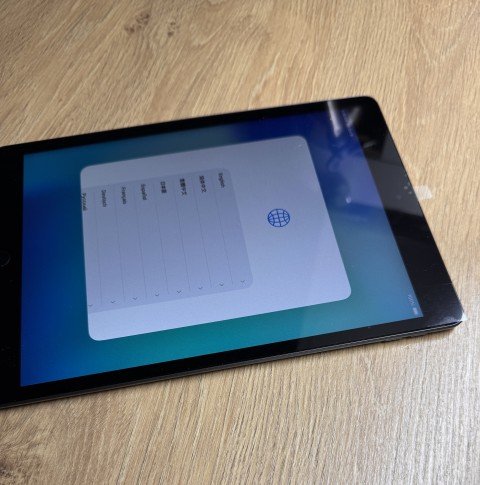
What if your iPad’s unresponsive screen is a temporary freeze, not a broken display? When taps stop registering, it’s natural to worry about damage or losing your data. Before assuming the worst, a few careful checks can help narrow down what’s happening. This guide to an ipad screen unresponsive fix melbourne starts with simple, low-risk steps.
Check whether the iPad is frozen, whether a screen protector or other obstruction is affecting touch, and whether one area of the screen consistently ignores taps. You’ll also learn when to stop troubleshooting rather than risk making the problem worse. If the screen still won’t respond, SIMSIM Repairs technicians provide iPad repairs at the Melbourne CBD store at 80 Flinders St, Melbourne VIC 3000. Start with these safe checks.
Key Takeaways
- Start with low-risk checks, and stop if the iPad is hot, swollen or visibly damaged.
- Touch response is how the display detects and interprets finger or stylus input. Persistent failure may need professional assessment.
- Use the symptoms, such as a temporary freeze, an obstruction or ongoing touch failure, to guide your next step in this ipad screen unresponsive fix melbourne guide.
- If the iPad becomes usable, back it up before travelling for repair, provided you can do so safely.
- For touch problems that remain after safe checks, SIMSIM’s Melbourne CBD technicians can assess your iPad.
IPad Screen Unresponsive in Melbourne? Start With These Safe Checks
An iPad that stops responding can have several causes, so start with a careful check rather than pressing buttons at random. The interface may be frozen while touch input still works, or the display may not be registering your finger properly. A crack isn’t required for touch response to fail, so don’t rely on appearance alone.
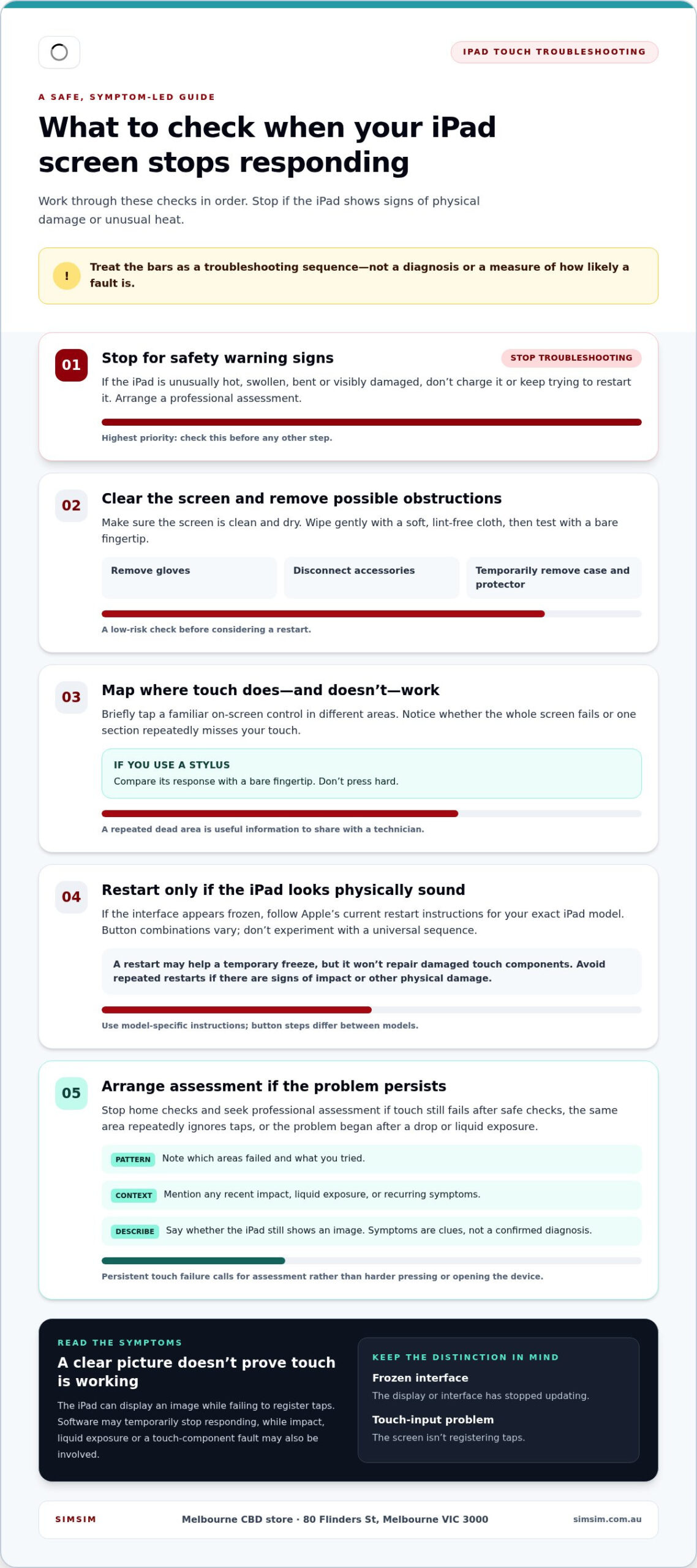
Begin with simple checks, then decide whether a restart is sensible. If the iPad is unusually hot, swollen, bent or visibly damaged, stop troubleshooting. Don’t charge it or keep trying to restart it; arrange professional assessment instead. The iPad has delicate screen components, so handle it gently.
What to check before restarting your iPad
Make sure the screen is clean and dry. Wipe it gently with a soft, lint-free cloth, then test with a bare fingertip. Remove gloves, which can interfere with touch input. Disconnect accessories and temporarily take off the case and screen protector in case they’re pressing against or affecting the display.
- Tap a familiar on-screen control in different parts of the display.
- Notice whether every area fails or only one section consistently misses your touch.
- If you use a stylus, compare its response with a bare fingertip, without pressing hard.
These checks can help you describe the problem, but they can’t confirm a hardware fault. A temporary freeze may affect the whole interface, while a localised dead area can point to a touch problem that needs assessment. Keep the test brief and gentle.
How to try a safe restart
If the iPad looks physically sound and the screen remains frozen, follow Apple’s current restart instructions for your exact model. Button combinations vary between models, so don’t rely on one universal sequence. Find the model-specific steps through Apple Support and follow them carefully rather than experimenting.
A frozen interface has stopped updating; a touch-input problem means the screen isn’t registering taps. A restart may help with the first, but it won’t repair damaged touch components. Don’t force repeated restarts if the device shows signs of impact or other physical damage.
If these checks don’t restore response, note which areas failed and what you tried. That information can help a technician assess the iPad. The SIMSIM YouTube channel also offers device guidance. If you’re looking for an ipad screen unresponsive fix melbourne, persistent touch issues are a sensible reason to seek professional assessment.
Why an iPad Screen Stops Responding: Software, Display or Touch Fault?
Touch response is the display sensing and interpreting a finger or stylus input, then passing that input to the iPad so it can react. The image and touch response are related but distinct functions: an iPad may show a clear picture even when it isn’t registering taps.
That difference can help you describe the problem, but it can’t identify the cause on its own. Software may temporarily stop responding; impact, cracks or liquid exposure may affect the screen; and a touch-component fault is another possibility. Symptoms are useful clues, not a diagnosis. Asurion’s iPad screen troubleshooting tips can guide initial checks, but they can’t confirm which component has failed.
Clues that may point to a temporary software freeze
If the screen continues to display a page, video or home screen but doesn’t react to input, the software may be temporarily stuck. If a restart restores normal touch, note that result, but don’t treat it as proof the issue is resolved for good. Record when the problem began, what was on screen and whether the same symptom returns. A pattern can help narrow down the investigation.
For example, note whether the issue appears after opening a particular app, waking the iPad or using it for a while. These details don’t establish a software cause, but they give a technician a clearer account than “it stopped working.” If the problem disappears and later returns, note that too. Intermittent faults are worth mentioning, even when the screen behaves normally between episodes.
Clues that call for a professional assessment
Arrange an assessment if one area repeatedly ignores touch, the problem persists after safe checks, or it began after a drop or contact with liquid. Visible cracks matter, but normal-looking glass doesn’t rule out an internal display or touch fault. Avoid pressing hard on the screen or trying to open the device. A technician can examine it to determine what may be affected.
- Persistent dead zone: The same part of the screen misses taps across different apps.
- Recent impact: Touch problems begin after the iPad is dropped, even if the glass looks intact.
- Liquid exposure: Unresponsive touch follows a spill or damp conditions.
Keep your description factual: what changed, where touch fails, and whether the screen still shows an image. Don’t guess at a failed part. A professional assessment can distinguish possible software behaviour from screen or touch hardware concerns and help you choose a sensible next step. You can also find device guidance on the SIMSIM YouTube channel.
If the issue continues, book an iPad assessment with SIMSIM. A careful ipad screen unresponsive fix melbourne starts with understanding the symptoms, not naming a fault before the iPad has been examined.
Which iPad Screen Fix Should You Choose in Melbourne?
The best next step depends on what happens after a safe check, not simply on whether the screen looks intact. Use this comparison to decide whether a brief home check is reasonable or whether it’s time to stop and arrange an assessment. These patterns can guide your decision, but they can’t confirm the cause remotely.
| Symptom | Safe check | Sensible next step |
|---|---|---|
| The screen appears stuck, with no obvious physical damage. | Try one careful round of basic checks and a restart using instructions for your iPad model. | If touch returns and stays reliable, monitor it. If the issue recurs, arrange an assessment. |
| Touch improves after removing an accessory or screen protector. | Test the clean, dry display without the case or accessory attached. | If response remains consistent, reintroduce items one at a time to see whether one affects touch. |
| Touch keeps failing, affects the same area or changed after impact or liquid exposure. | Stop pressing or restarting the device. Note what happened and which areas respond. | Arrange professional assessment rather than escalating DIY attempts. |
This symptom-led approach can make an ipad screen unresponsive fix melbourne decision clearer. A brief, isolated issue without damage may justify one careful check. A repeated fault is different. More resets or forceful tests won’t reveal which part is affected and could put the device at further risk.
When home troubleshooting is a reasonable first move
A home check is a sensible first move if the problem is temporary, hasn’t followed physical damage and the iPad otherwise appears normal. Clean and dry the display, disconnect accessories, and, if the interface seems frozen, follow Apple’s current restart guidance for your exact model. Try the basic checks once rather than repeating them whenever touch falters.
If response returns, observe whether it stays consistent during ordinary use. Note how long it works and whether the problem comes back in a particular situation. For instance, record if touch fails again after the iPad wakes or when you return to an app. Those observations can help you decide whether to continue using the device cautiously or arrange an assessment.
When to stop troubleshooting and arrange an assessment
Stop home troubleshooting if the screen remains unresponsive, the fault returns, or you see visible damage. Don’t keep testing a device that becomes unusually hot, looks swollen or shows other signs of battery damage. In those circumstances, avoid charging, pressing on the display or trying to open the iPad.
SIMSIM repairs iPads in Melbourne, and a technician can assess the device before recommending a repair instead of guessing from symptoms alone. As you decide whether to move beyond home checks, use the practical device guidance on the SIMSIM YouTube channel to help describe what you’ve observed. If assessment is the right next step, book an iPad assessment with SIMSIM.
Preparing Your Unresponsive iPad for Melbourne Repair
A little preparation can make an iPad assessment more straightforward, even if the screen only responds now and then. Focus on protecting your information and giving the technician a clear account of what happened. Don’t delay a visit to complete a step that isn’t safe or possible with an unresponsive device.
Protect your information and record the symptoms
If the iPad becomes usable and you can do so safely, make a recent backup before travelling. Don’t force repeated attempts to unlock or operate a device that is damaged, unusually hot or swollen. Keep your passcode private. Don’t include it in notes or share it through an unverified channel.
Before you go, write down the details you can remember. A short, factual record is more useful than guessing which component may have failed.
- Identify the iPad: Note its model or model name if you know it. If the device is accessible, use its settings to find identifying details, but don’t struggle with an unresponsive screen.
- Describe the symptom: Record when touch stopped working, whether it began suddenly or intermittently, and whether the whole display or only one area still responds.
- Note relevant events: Include any recent drop, visible crack or liquid exposure, even if the screen looks mostly normal.
- List checks already tried: For example, note whether you removed an accessory, tried a model-specific restart, or saw touch response return temporarily.
- Bring useful context: If you use an accessory that was connected when the issue started, note that too. There’s no need to keep testing it if doing so makes the device behave unpredictably.
These notes keep the conversation focused on observable facts. They don’t replace an assessment, but they can help the technician understand how the problem began and how it has changed.
Plan a visit to SIMSIM in Melbourne CBD
SIMSIM’s store is at 80 Flinders St, Melbourne VIC 3000. If the touch issue persists after safe checks, arrange an iPad assessment and bring your notes. A booking helps you plan the visit, but it doesn’t determine the cause or promise a particular repair outcome or timeframe.
For a helpful reference before your visit, explore the SIMSIM YouTube channel. If you’re ready to arrange an assessment, book an iPad assessment with SIMSIM. For anyone considering an ipad screen unresponsive fix melbourne, arriving with a backup if possible, symptom notes and a clear account of what you’ve tried can make the first conversation more useful.
Book an iPad Screen Assessment with SIMSIM in Melbourne
If a careful round of safe checks hasn’t restored reliable touch response, or the iPad is visibly damaged, stop troubleshooting and arrange an assessment. A temporary issue that clears may simply need monitoring, but persistent or recurring failure deserves a closer look. Repeated resets and improvised fixes can’t confirm what’s wrong.
SIMSIM is an independent repair business in Melbourne CBD, where technicians handle iPad and other device repairs. An assessment is a practical next step when you’re unsure whether the symptom relates to the display, touch response or software. You don’t need to arrive with a diagnosis. A clear account of what you’ve noticed is enough to begin.
What a repair assessment helps clarify
A technician can examine the iPad and consider whether its symptoms are consistent with a display issue, a touch-response fault or software behaviour. That assessment informs the next recommendation; it doesn’t mean a particular cause, part, repair duration or outcome can be promised in advance. The device needs to be assessed before anyone can responsibly say what it may need.
Share the details you’ve observed: whether the screen still shows an image, if touch fails everywhere or in one area, when the problem began, and whether it followed a drop or liquid exposure. Mention which safe checks you tried and whether they changed anything. These practical details help technicians understand the pattern without relying on guesswork. If the issue comes and goes, say so.
SIMSIM repairs Apple devices, including iPads. The right next step for your device depends on what an assessment finds, not on assuming every unresponsive screen needs the same fix.
Choose a convenient next step
SIMSIM’s Melbourne CBD store is at 80 Flinders St, Melbourne VIC 3000. If the touch issue persists, arrange an assessment and bring your notes about the symptoms and checks tried. If the iPad becomes usable and you can safely back it up, do that before your visit. Don’t put yourself or the device at risk trying to complete preparations.
You can also browse the SIMSIM YouTube channel for additional device guidance. For an ipad screen unresponsive fix melbourne, the sensible path is simple: check safely once, then seek professional assessment if the problem remains or the iPad is damaged.
Book an iPad screen assessment with SIMSIM, and let the team know what your screen is doing and which checks you’ve already tried.
Take the Next Step with Confidence
A touch problem can leave you wondering whether to keep relying on your iPad or plan for a repair. You don’t have to make that decision based on guesswork. An assessment can help you understand the issue and make a more informed choice about what comes next for your device.
If you’re still considering an ipad screen unresponsive fix melbourne, focus on understanding the problem rather than trying increasingly risky fixes at home. Explain what you’ve noticed and let SIMSIM’s technicians assess the iPad before you decide on the next step. There’s no need to arrive with a diagnosis.
Arrange your iPad assessment with SIMSIM and take a practical step towards using your device with confidence again.
Frequently Asked Questions
Can I fix an unresponsive iPad screen at home?
Yes, start with simple checks that don’t involve opening the device. Clean and dry the screen, disconnect accessories, temporarily remove the case or screen protector, then follow Apple’s restart instructions for your exact model. If the screen remains unresponsive, the problem returns or you notice damage, stop there. Don’t press hard on the display or attempt a DIY opening. These steps are a cautious first try, not a guarantee of a fix.
Is an unresponsive iPad screen always caused by a broken display?
No. A software freeze, an obstruction, an accessory issue or a hardware fault can produce similar symptoms. A visible image only tells you the screen is displaying content; it doesn’t show whether touch input is working properly. Note what still responds, such as buttons or audio, and when the problem started. An assessment can help determine what to investigate without assuming the display is broken.
Can water damage make an iPad screen unresponsive?
Yes, liquid exposure can be relevant if touch response changes, but an unresponsive screen alone can’t confirm water damage. If liquid has reached the iPad, stop charging it and don’t try to open or heat it. Record what happened, including whether the device was connected to power, and arrange an assessment. If it behaves unusually or shows visible damage, avoid further testing and explain those symptoms to the technician.
Should I back up my iPad before getting the screen repaired?
Back it up if the screen works long enough and you can complete the process safely. If it won’t respond, don’t keep trying to operate it just to force a backup. Instead, note the model, the symptoms and whether you know of a recent backup. Keep your passcode private, and don’t share it through an unverified channel. This gives the technician useful context while helping you protect your information.
Can a screen protector cause an iPad touchscreen to stop responding?
It can sometimes interfere, especially if the protector is damaged, poorly fitted or obstructing the display. If you can remove it safely, test the screen with clean, dry fingers and accessories disconnected. Avoid tools or force that could scratch or crack the glass. If touch still fails, or the issue returns after removing the protector, don’t assume the accessory was the only cause. Persistent problems call for assessment.
Where can I get an unresponsive iPad screen assessed in Melbourne CBD?
SIMSIM is at 80 Flinders St, Melbourne VIC 3000. If basic checks haven’t restored touch response, arrange an assessment and describe when the issue began, any recent impact or liquid exposure, and what you’ve tried. These details help the technician understand the symptoms without presuming the cause. For an ipad screen unresponsive fix melbourne, an assessment is a practical next step when the problem persists.